27 октября — 3 ноября 2026October 27 — November 3, 2026
Что нового в Uno за неделюWhat's new in Uno this week
За неделю вышло 16 версий Uno Work (0.0.155 → 0.0.179), а консоль, Spark, хранилище и сайты получили новые возможности. Здесь всё, что уже работает у всех: что поменялось, как выглядит и куда нажать.This week brought 16 versions of Uno Work (0.0.155 → 0.0.179) and new features in the console, Spark, storage and sites. Everything here is live for everyone: what changed, how it looks and where to click.
Новый чат: одно поле посерединеA new chat: one field in the middle
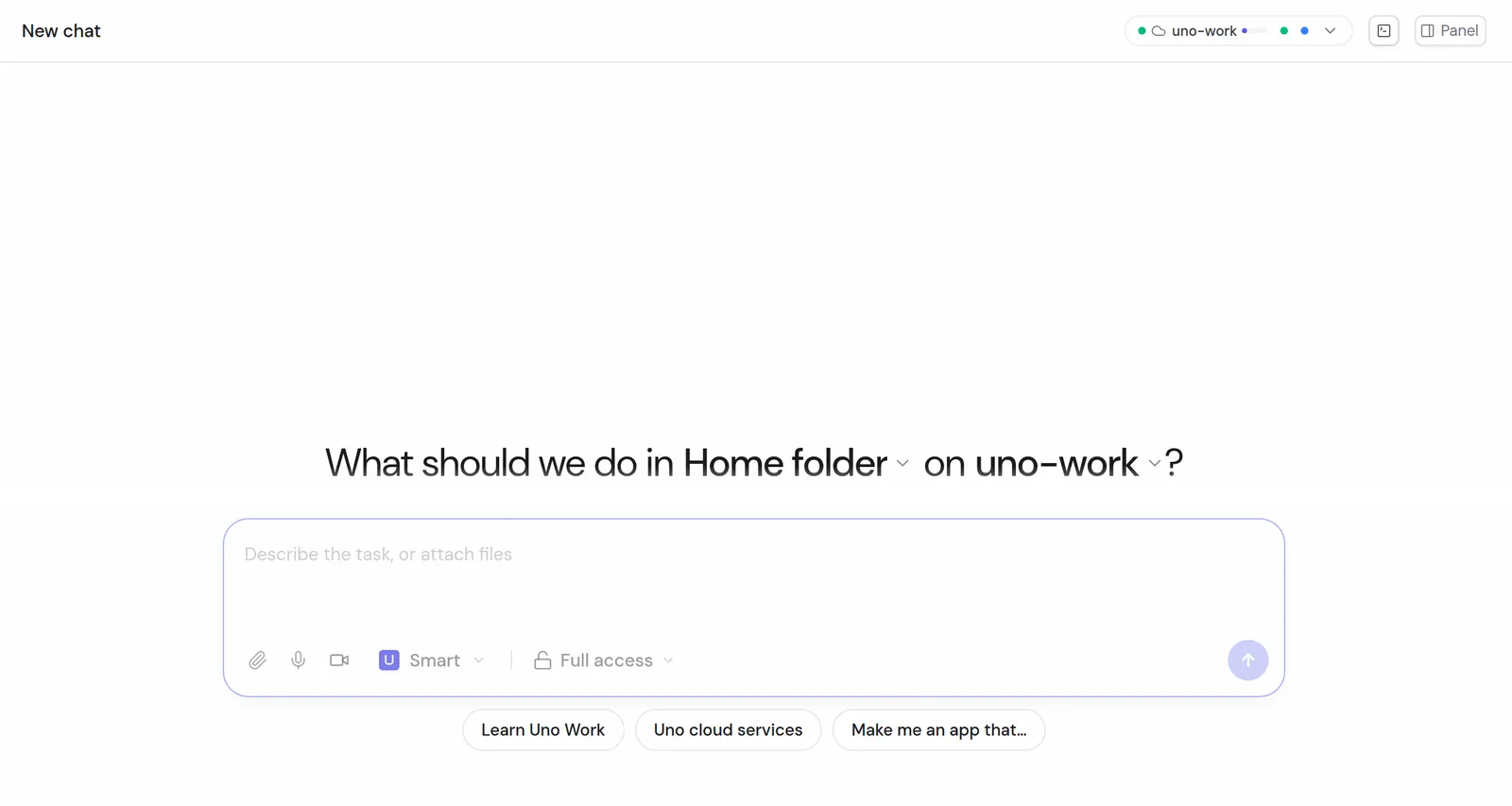
Новый чат открывается с одним полем в центре экрана. Прямо в нём выбираете проект и компьютер, где работать, — без отдельных шагов.A new chat opens with a single field in the middle of the screen. You pick the project and the computer to work on right there, with no separate steps.
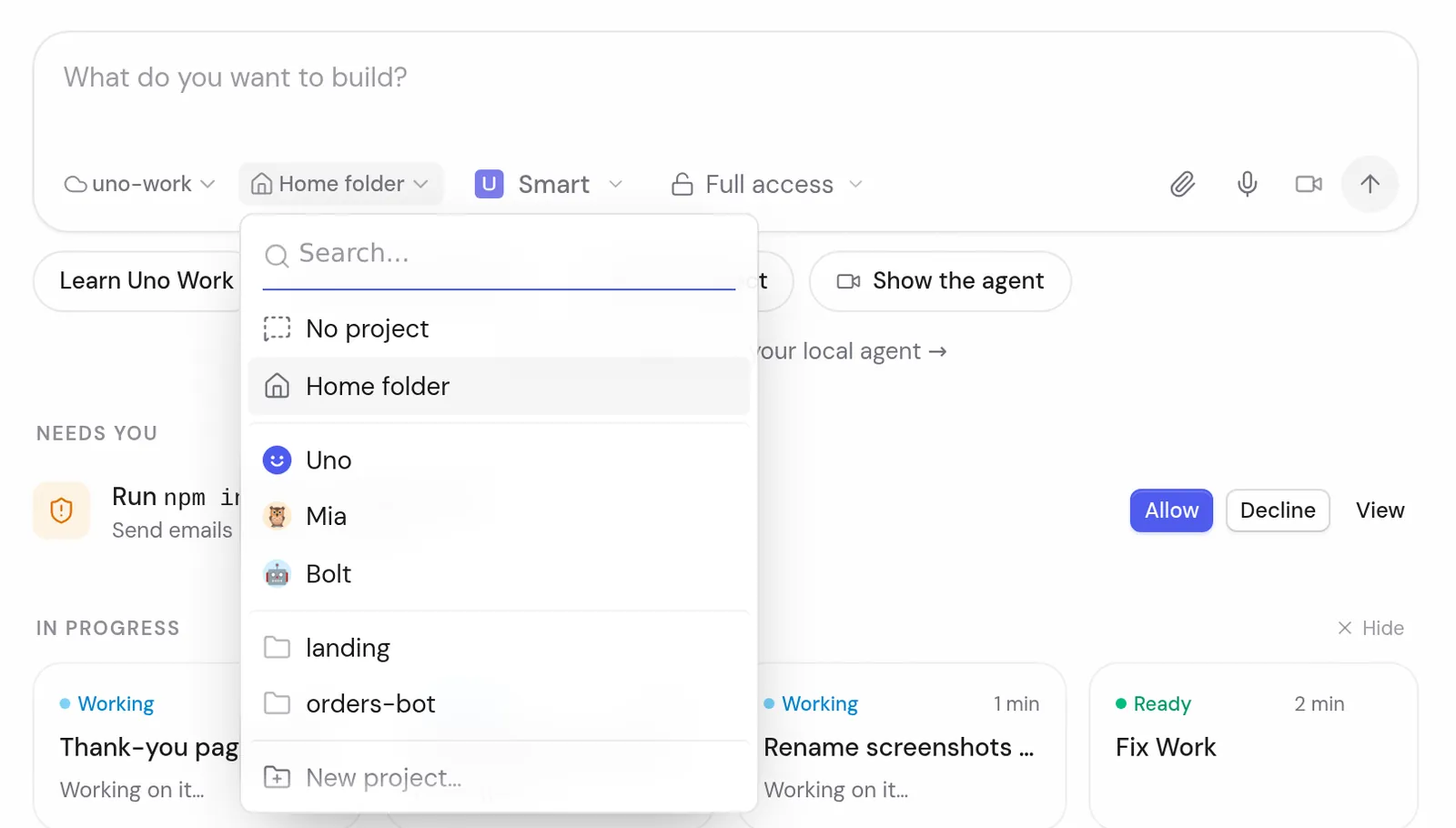
Новый чат: один вопрос посередине — в какой папке и на каком компьютере работаемNew chat: one box in the middle that asks which folder and which computer to work inВыбор проекта прямо в поле: без проекта, домашняя папка, ассистенты, проектыPick a project right in the box: no project, home folder, an assistant or a project
Как пользоватьсяHow to use it
Нажмите New chat в боковой панели.
Под полем выберите проект и компьютер.
Напишите задачу и отправьте.
Press New chat in the sidebar.
Under the field, pick the project and the computer.
Type the task and send it.
1 ноябряNov 1 · 0.0.172
Чат читается легче, агент отвечает страницами и схемамиA cleaner chat, with pages and diagrams in answers
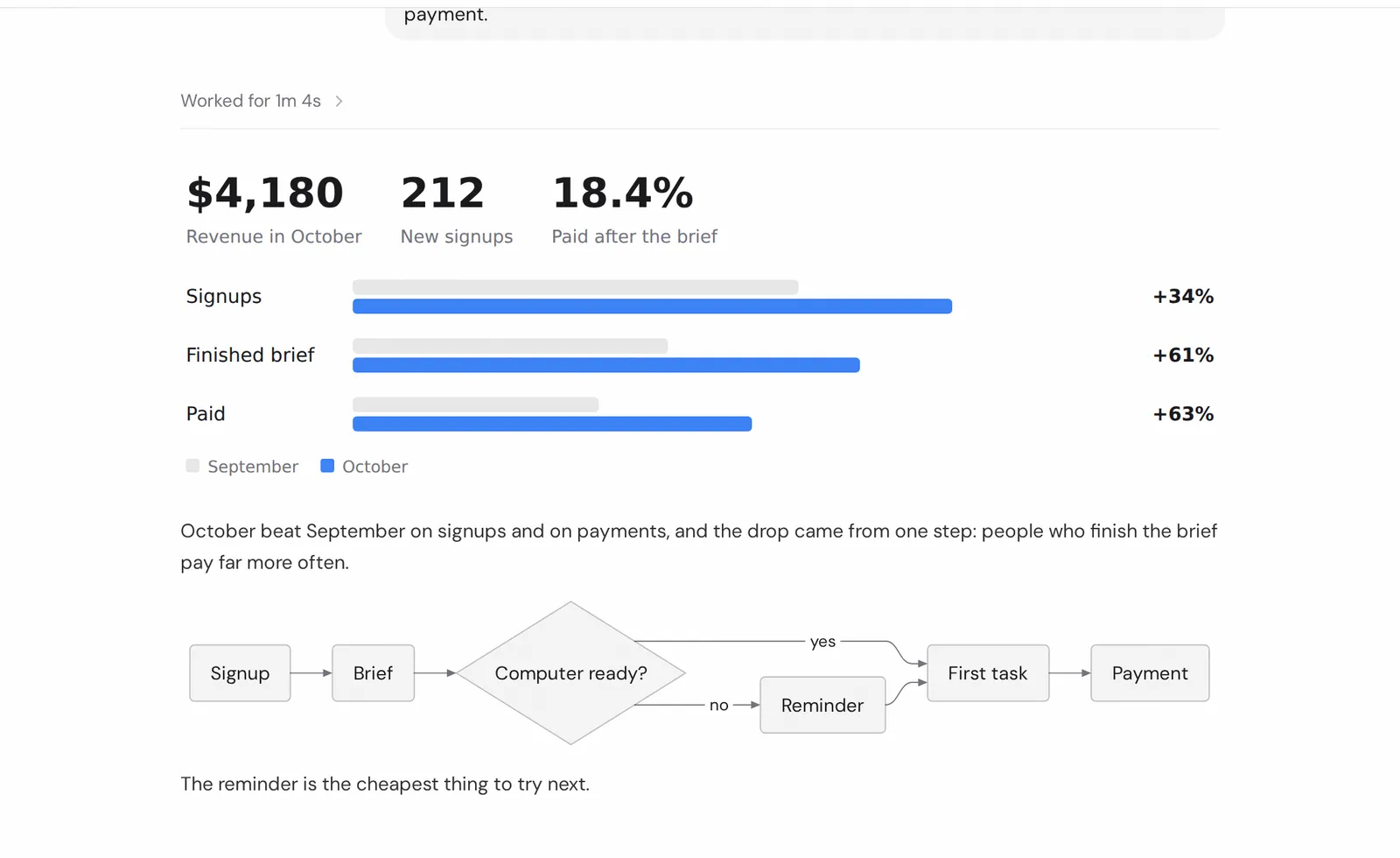
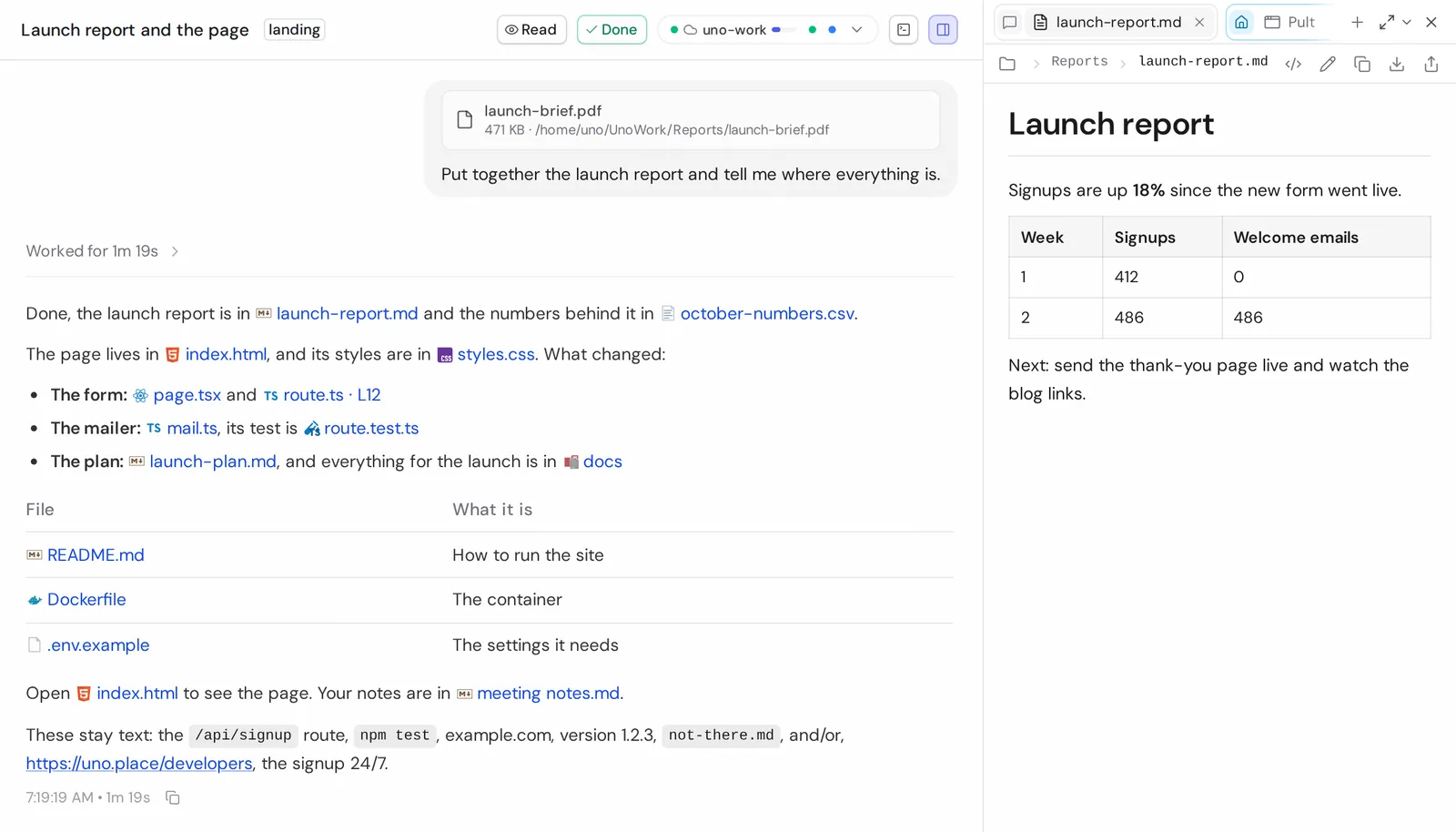
Служебные шаги агента свёрнуты, остаются ответ и итог. Агент может ответить готовой HTML-страницей или диаграммой прямо в чате, а файлы, которые он упоминает, открываются справа одним кликом.The agent's working steps are folded away, leaving the answer and the result. The agent can reply with a ready HTML page or a diagram right in the chat, and files it mentions open on the right in one click.
Агент отвечает страницей: цифры, график и схема прямо в чатеThe agent answers with a page: numbers, a chart and a diagram right in the chatФайлы в ответе — значки; клик открывает файл справаFiles in the answer are chips; a click opens the file on the right
Как пользоватьсяHow to use it
Попросите: «покажи это таблицей / схемой / страницей».
Кликните по имени файла в ответе — он откроется в правой панели.
Ask: "show this as a table / diagram / page".
Click a file name in the answer and it opens in the right panel.
1 ноябряNov 1 · 0.0.172
Очередь сообщений, перенос к другому агенту, поиск по чатамQueued messages, moving to another agent, search across chats
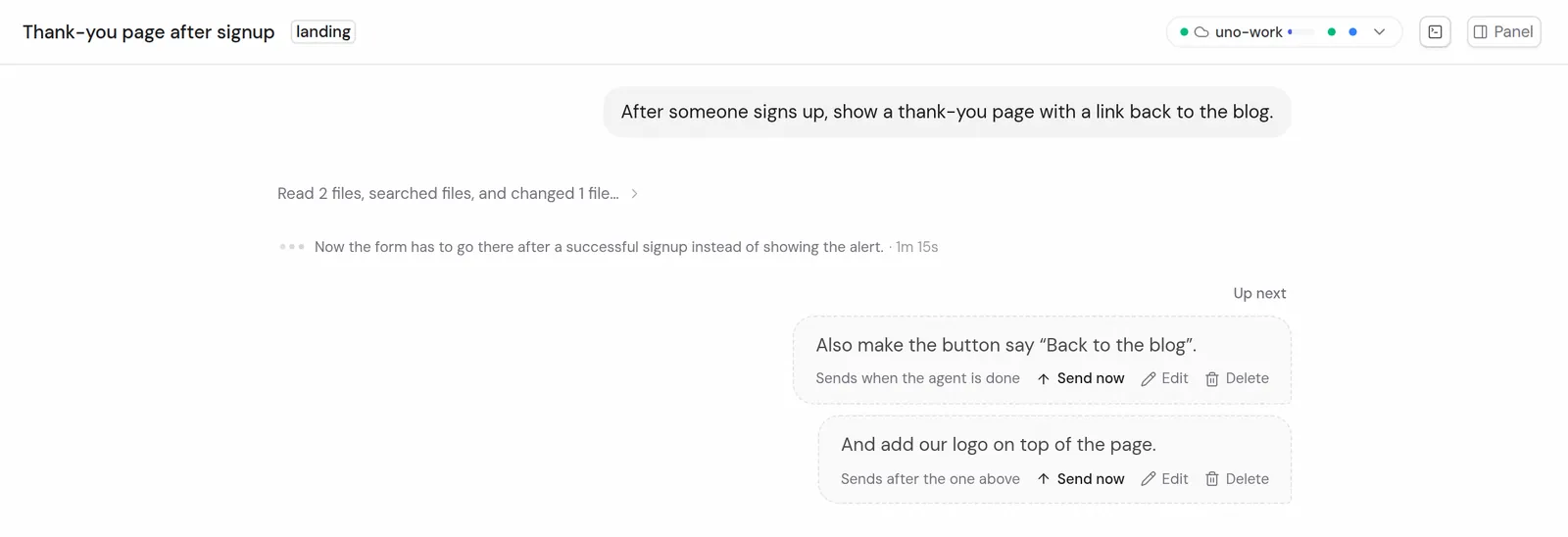
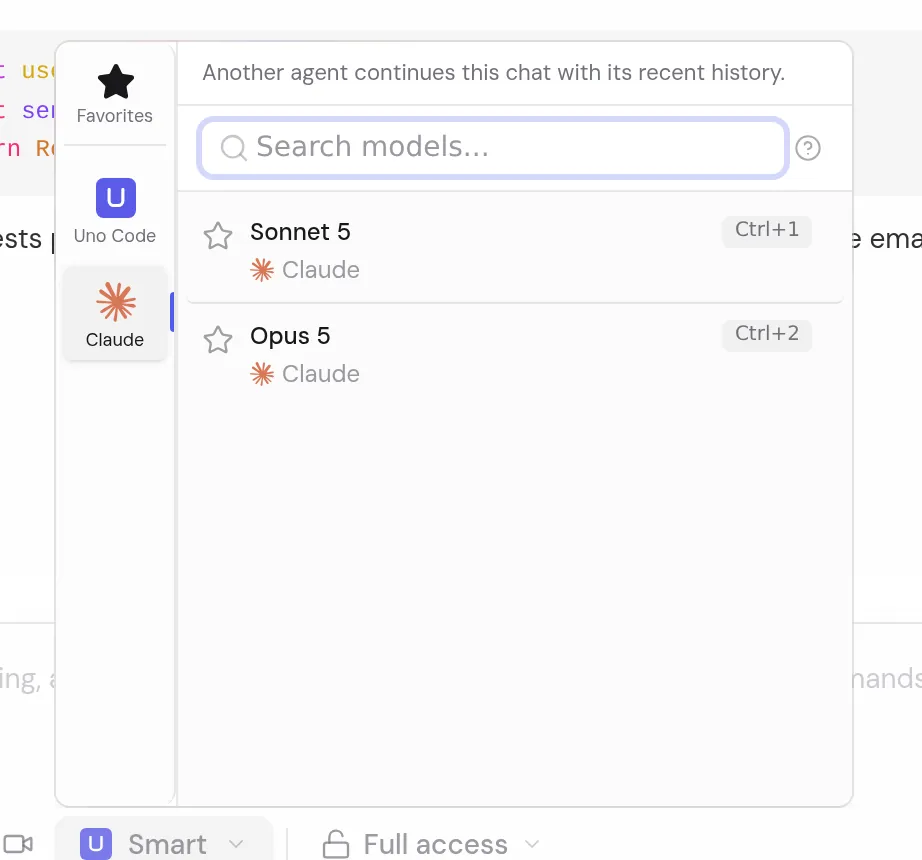
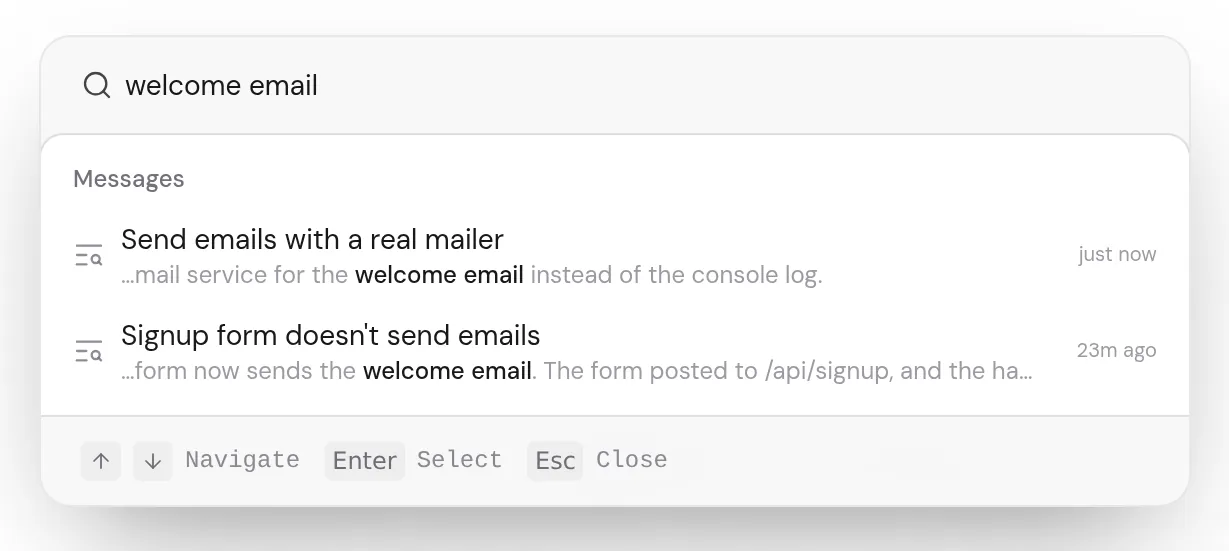
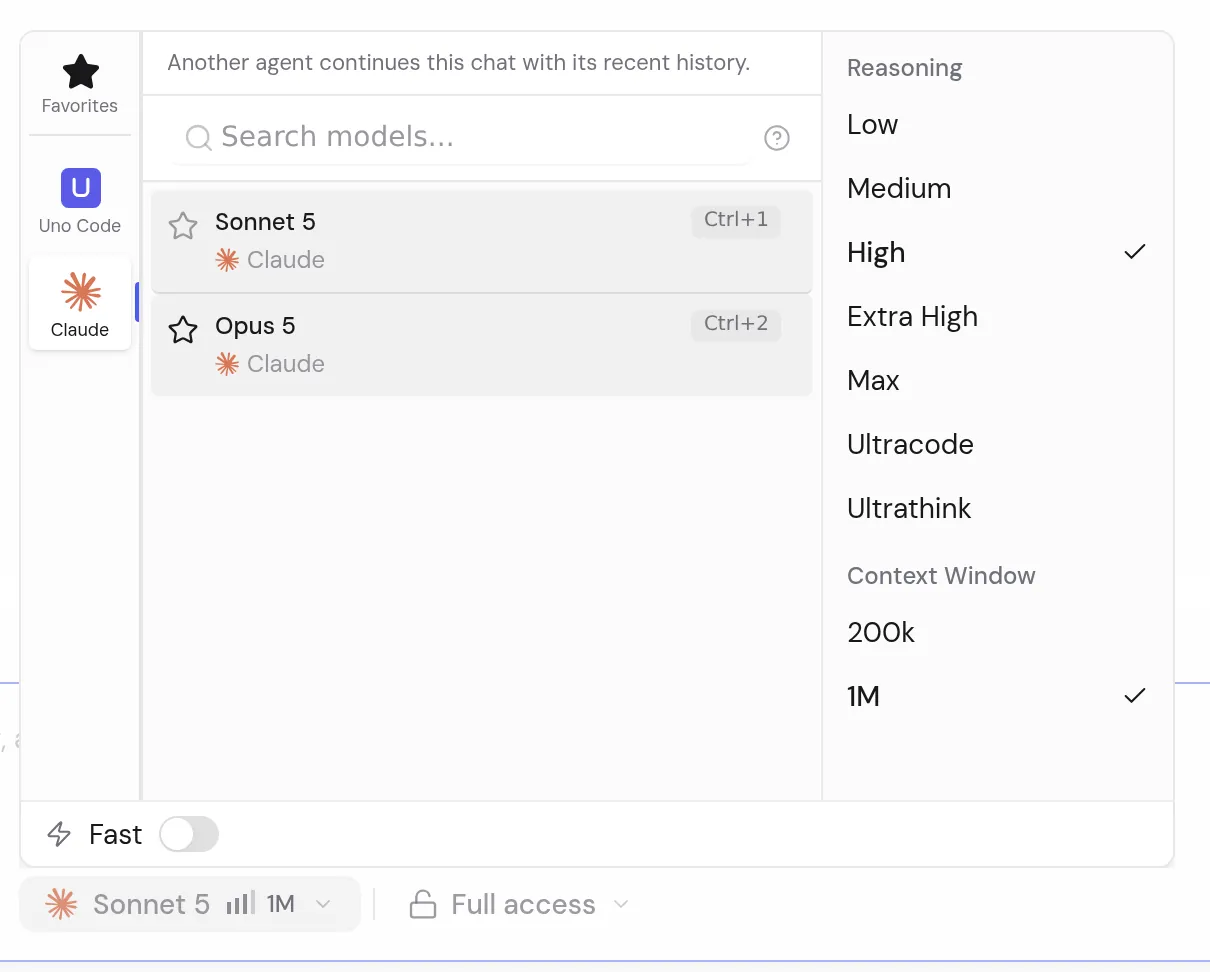
Пока агент работает, можно писать дальше: сообщения встают в очередь Up next и уходят сами по порядку. Начатый чат можно передать другому агенту (например, из Claude в Codex) вместе с историей. Поиск ищет по всем чатам. Если упёрлись в лимит подписки, Work предложит продолжить, когда лимит обновится.While the agent works you can keep writing: messages line up in Up next and go out by themselves, in order. A started chat can move to another agent (say, from Claude to Codex) with its history. Search looks through all your chats. If you hit your subscription limit, Work offers to pick up when it resets.
Очередь Up next: пока агент работает, сообщения ждут — отправить сейчас, поправить или удалитьUp next: while the agent works, new messages wait in line — send now, edit or deleteДругой агент продолжает этот чат с его историейAnother agent continues this chat with its historyПоиск по тексту всех чатов (⌘K)Search the text of all your chats (⌘K)
Как пользоватьсяHow to use it
Пишите во время работы агента — сообщение встанет в Up next.
Сменить агента: выбор агента над полем ввода в начатом чате.
Поиск: ⌘K (Ctrl+K на Windows) или иконка поиска в боковой панели.
Write while the agent works and the message goes to Up next.
Switch the agent: the agent picker above the input in a started chat.
Search: ⌘K (Ctrl+K on Windows) or the search icon in the sidebar.
2 ноябряNov 2 · 0.0.175
Задача переживает обновление WorkA task survives a Work update
Если Uno Work обновился или перезапустился в облаке, агент продолжает с того места, где остановился, а следующее сообщение из очереди уходит само. Try again теперь повторяет задачу, а не копирует ваше сообщение в новый ход.When Uno Work updates or restarts in the cloud, the agent goes on from where it stopped and the next queued message goes by itself. Try again now repeats the task instead of copying your message into a new turn.
Как пользоватьсяHow to use it
Ничего делать не нужно — работает само.
Nothing to do: it just works.
31 октябряOct 31 · 0.0.171
Новый чат переживает перезагрузку страницыA new chat survives a page reload
Новый чат помнит свой проект после перезагрузки, больше не просит войти в другого агента, и сообщение отправляется. Черновик, который уже успел сломаться, чинится сам. Uno в Telegram больше не пишет «чат не запустился», когда он запустился.A new chat keeps its project after you reload the page, no longer asks you to sign in to another agent, and your message sends. A draft that had already broken repairs itself. Uno in Telegram no longer says a chat didn't start when it did.
Как пользоватьсяHow to use it
Ничего делать не нужно.
Nothing to do.
2 ноябряNov 2 · 0.0.177
Меньше вопросов «Allow?»Fewer "Allow this?" questions
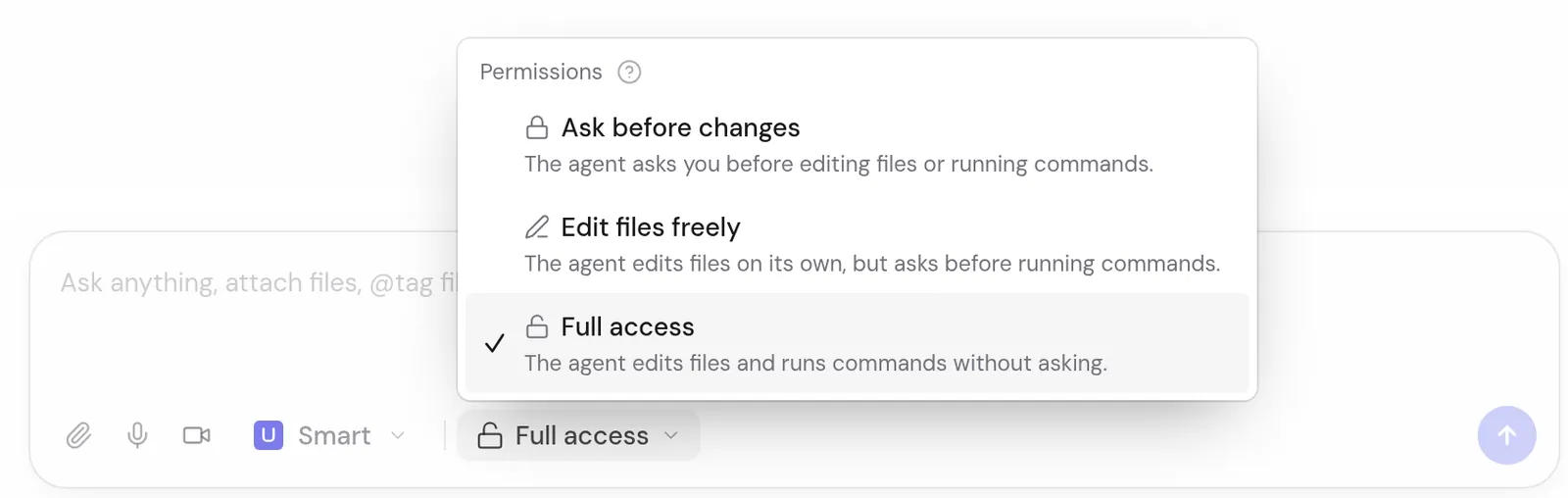
В чате с полным доступом агент делает ссылку на скачивание файла, не спрашивая вас. В режиме Ask он по-прежнему спрашивает. Ссылка, по которой другие могут править файл, — всегда с вопросом. Отчёты агента приходят приватной ссылкой: открывается после входа в Uno.In a chat with full access the agent makes a download link to a file without asking first. In Ask mode it still asks. A link that lets others edit a file always asks. The agent's reports arrive as a private link that opens after you sign in to Uno.
Права агента прямо под полем: спрашивать перед изменениями, править файлы свободно или полный доступThe agent's permissions right under the box: ask before changes, edit files freely, or full access
Как пользоватьсяHow to use it
Режим — в чипе под полем ввода (он называется по текущему режиму): Ask before changes, Edit files freely или Full access.
The mode is in the chip under the input, named after the current mode: Ask before changes, Edit files freely or Full access.
28 октябряOct 28 · 0.0.155–0.0.158
«Задача готова» — в Telegram или на почту"Task done" in Telegram or by email
Закрыли вкладку, а агент доделал работу — Uno напишет в Telegram, а если Telegram не привязан, то на почту аккаунта. Пока агент думает, видна строка «Thinking it through…» с тем, над чем он сейчас работает.Closed the tab and the agent finished? Uno tells you in Telegram, or by email if Telegram isn't linked. While the agent thinks, a "Thinking it through…" line shows what it is working on.
Пока агент работает, видно одной строкой, что он делает и о чём думаетWhile the agent works, one line shows what it's doing and thinking
Как пользоватьсяHow to use it
Привяжите Telegram на главной Work (Write to Uno in Telegram) — или ничего не делайте, придёт письмо.
Link Telegram on Work's Home (Write to Uno in Telegram), or do nothing and get an email.
Uno Work: ассистенты и автоматизацииUno Work: assistants and automations
28 октября · 1 ноябряOct 28 · Nov 1 · 0.0.159 · 0.0.174
Ассистенты — теперь у всехAI assistants, now for everyone
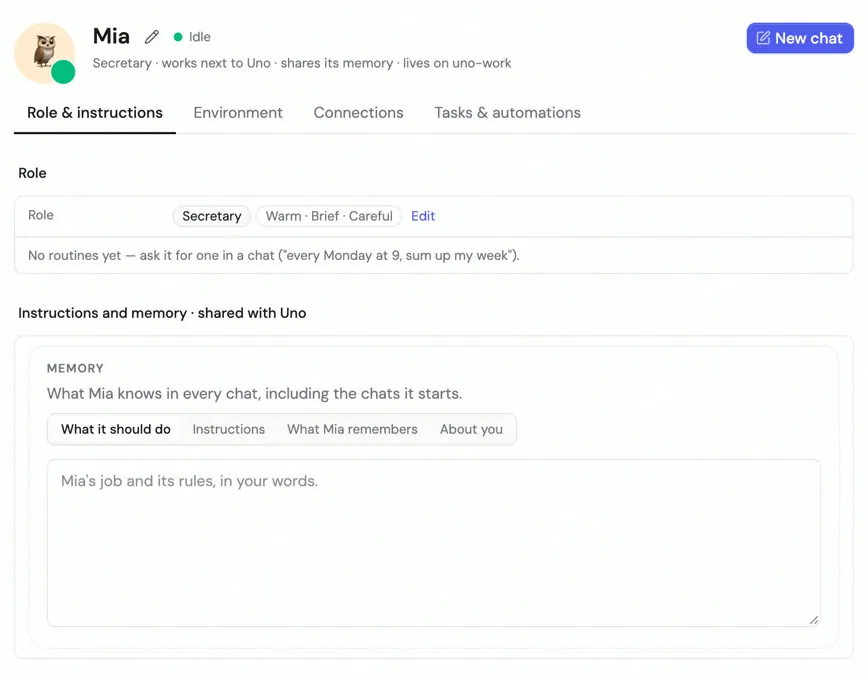
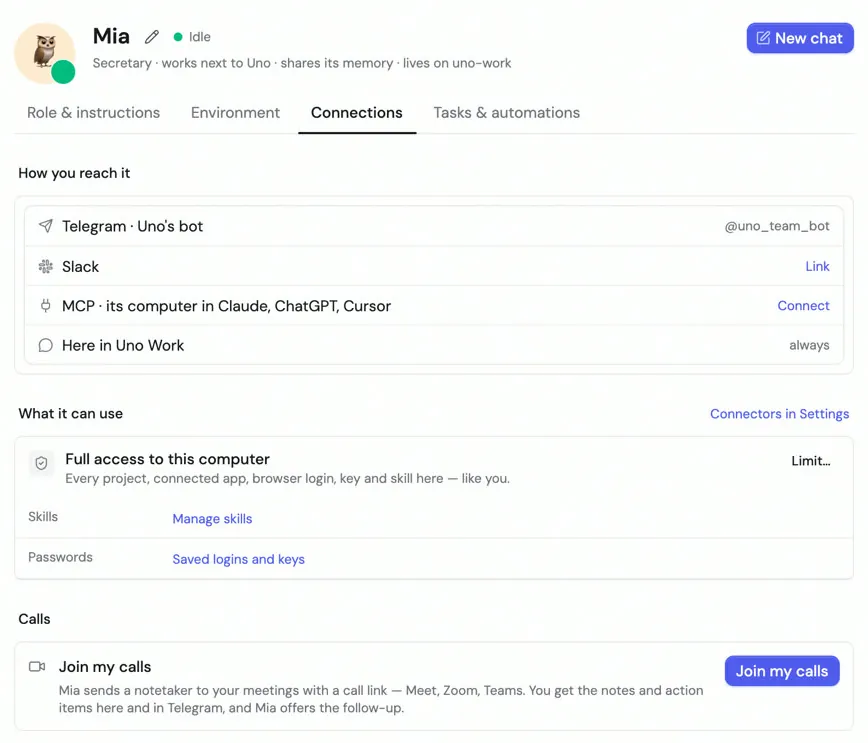
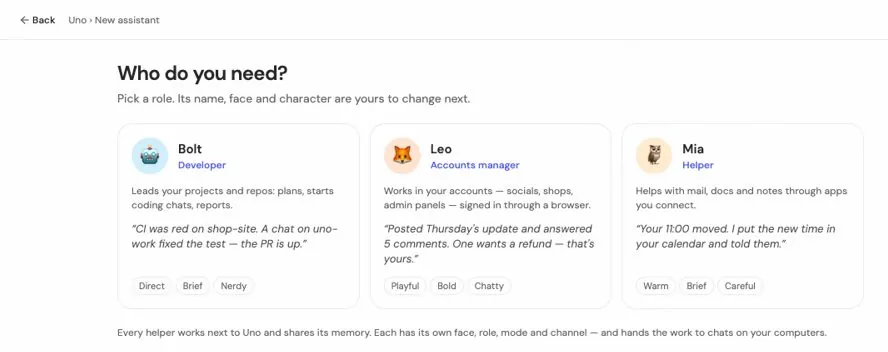
Ассистент — ваш помощник со своей ролью и памятью: пишете ему в Telegram или в Work, а он разбирает почту и календарь, готовит сводки, ходит на звонки и делает задачи по расписанию. Создаётся в один клик: выберите готовую роль (например, секретарь или разработчик) и лицо. Настройки ассистента собраны в четыре понятных блока: Role & instructions (кто он и что делает), Environment (где работает), Connections (Telegram, почта, календарь, Notion) и Tasks & automations (что делает по расписанию).An assistant is your helper with its own role and memory: you write to it in Telegram or in Work, and it handles your mail and calendar, prepares summaries, joins calls and does tasks on a schedule. Create one in a click: pick a ready role (say, a secretary or a developer) and a face. An assistant's settings are now four clear blocks: Role & instructions (who it is and what it does), Environment (where it works), Connections (Telegram, mail, calendar, Notion) and Tasks & automations (what it does on a schedule).
Настройки ассистента: вкладки Role & instructions, Environment, Connections, TasksAssistant settings: Role & instructions, Environment, Connections, TasksConnections: Telegram, Slack, MCP, доступ к компьютеру и звонкиConnections: Telegram, Slack, MCP, computer access and callsНовый ассистент: выберите роль — разработчик, менеджер аккаунтов или помощникNew assistant: pick a role — developer, accounts manager or helper
Как пользоватьсяHow to use it
Боковая панель → Assistants → New assistant.
Откройте ассистента → четыре блока настроек.
Подключите Telegram, чтобы писать ассистенту с телефона.
Sidebar → Assistants → New assistant.
Open the assistant to see its four settings blocks.
Connect Telegram to write to it from your phone.
1 ноябряNov 1 · 0.0.172
Автоматизации — для всехAutomations, open to everyone
Чат или ассистент работает сам: по расписанию («каждый день в 9»), когда приходит pull request, по секретной ссылке (вебхук) или когда кто-то заполнил форму на вашем сайте. Работа, начатая по ссылке или из формы, — это текст от постороннего, поэтому она ждёт вашего Allow на всё, кроме чтения и ответа.A chat or an assistant works by itself: on a schedule ("every day at 9"), when a pull request arrives, on a secret URL (a webhook) or when someone fills in a form on your site. Work started from a URL or a form is a stranger's text, so it waits for your Allow on everything except reading and replying.
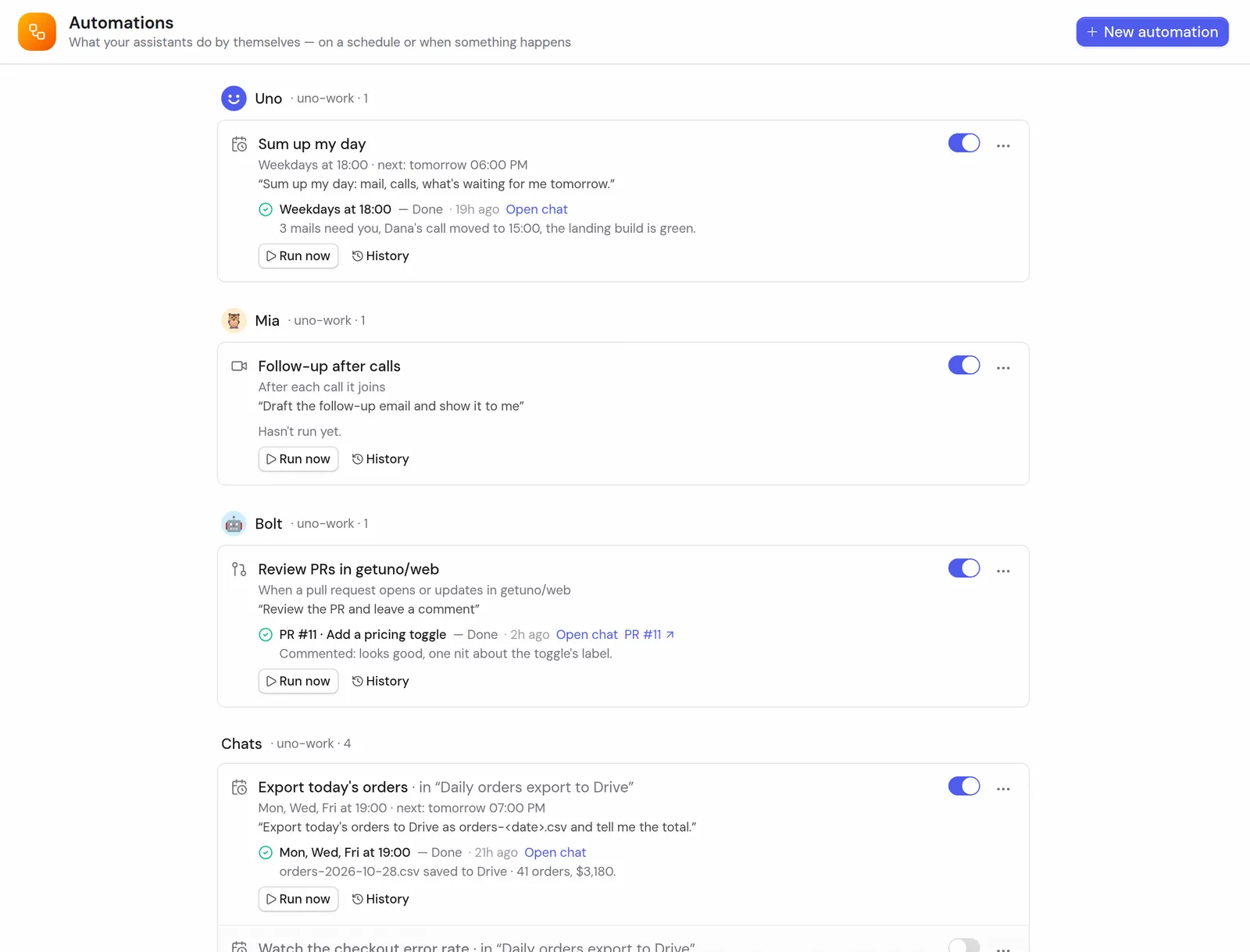
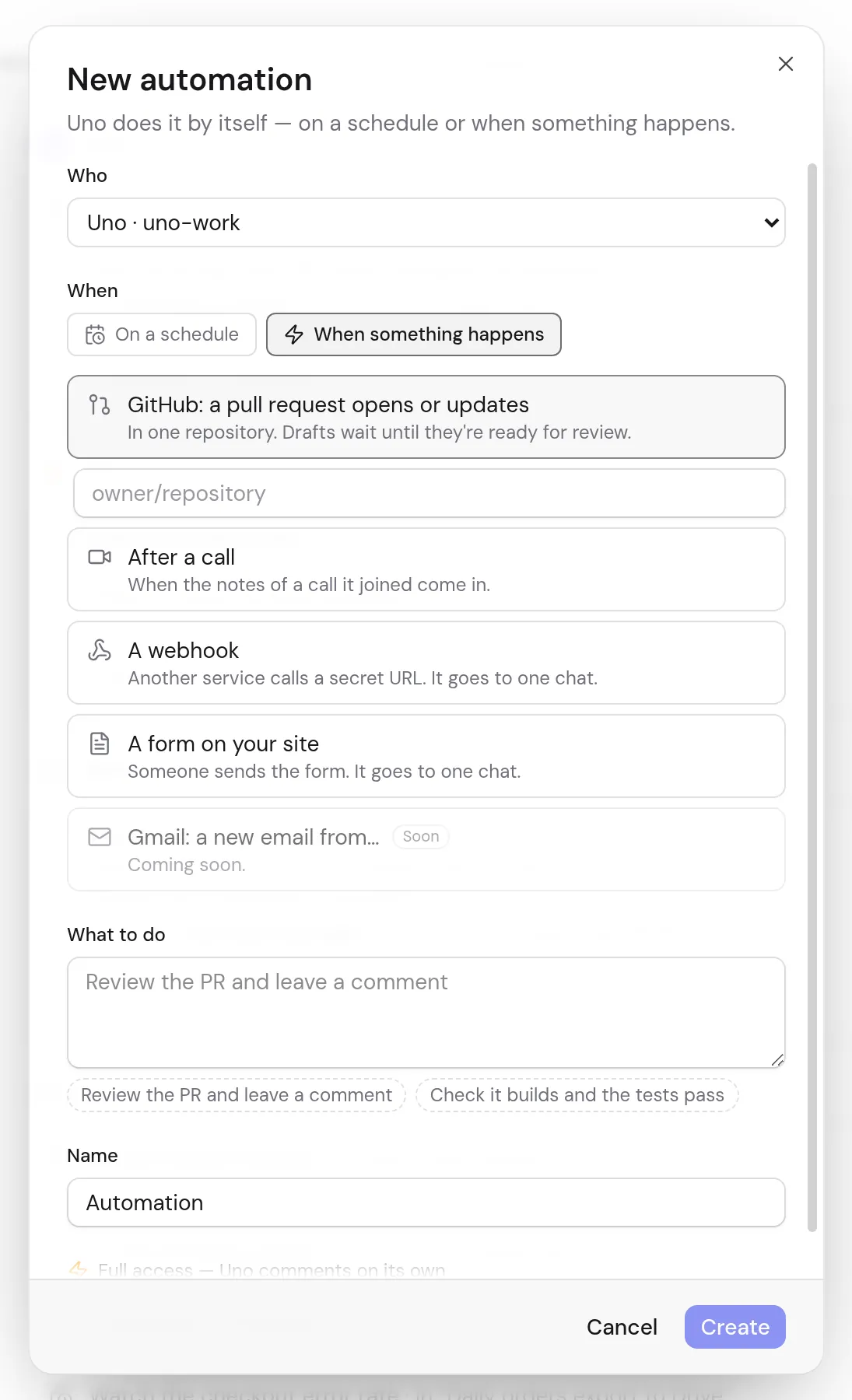
Automations: что ассистенты и чаты делают сами — по расписанию, после звонка, на pull requestAutomations: what assistants and chats do on their own — on a schedule, after a call, on a pull requestНовая автоматизация: запуск по событию — pull request, звонок, секретный адрес или форма на сайтеNew automation: start on an event — a pull request, a call, a secret URL or a form on your site
Как пользоватьсяHow to use it
Проще всего — попросить в чате: «каждый будний день в 9 присылай сводку по почте».
Все автоматизации — на странице Automations в боковой панели: пауза, запуск сейчас, удаление.
Секретную ссылку вебхука копируете вы со страницы Automations — агент её не видит.
Easiest: ask in a chat, "every weekday at 9 send me a summary by email".
All automations are on the Automations page in the sidebar: pause, run now, delete.
You copy a webhook's secret URL from the Automations page; the agent never sees it.
Update everything и Fix WorkUpdate everything and Fix Work
Одна кнопка Update everything обновляет Uno Work и всех агентов (Claude Code, Codex, Hermes и другие) на всех ваших компьютерах. Если что-то сломалось, Fix Work открывает чат-починку или ведёт к живому человеку.One Update everything button brings Uno Work and every agent (Claude Code, Codex, Hermes and others) up to date on all your computers. If something breaks, Fix Work starts a repair chat or leads you to a person.
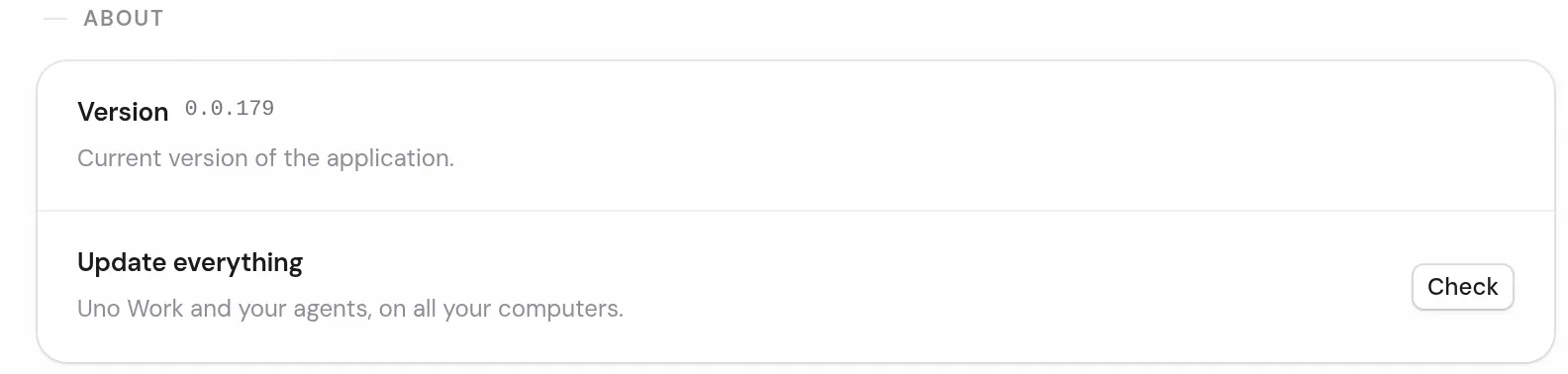
Update everything: Work и агенты на всех ваших компьютерах — одна кнопка CheckUpdate everything: Work and your agents on all your computers — one Check button
Как пользоватьсяHow to use it
Settings → Account & plan → внизу, в блоке About, строка Update everything → Check.
Когда чат упал с ошибкой, в плашке ошибки есть кнопка Fix Work.
Settings → Account & plan → at the bottom, under About, Update everything → Check.
When a chat fails, the error banner has a Fix Work button.
Uno Work: запись экранаUno Work: screen recording
28 октября → 2 ноябряOct 28 → Nov 2 · 0.0.158 · 0.0.161 · 0.0.179
Запишите экран — агент посмотрит и сделаетRecord your screen, and the agent watches and does it
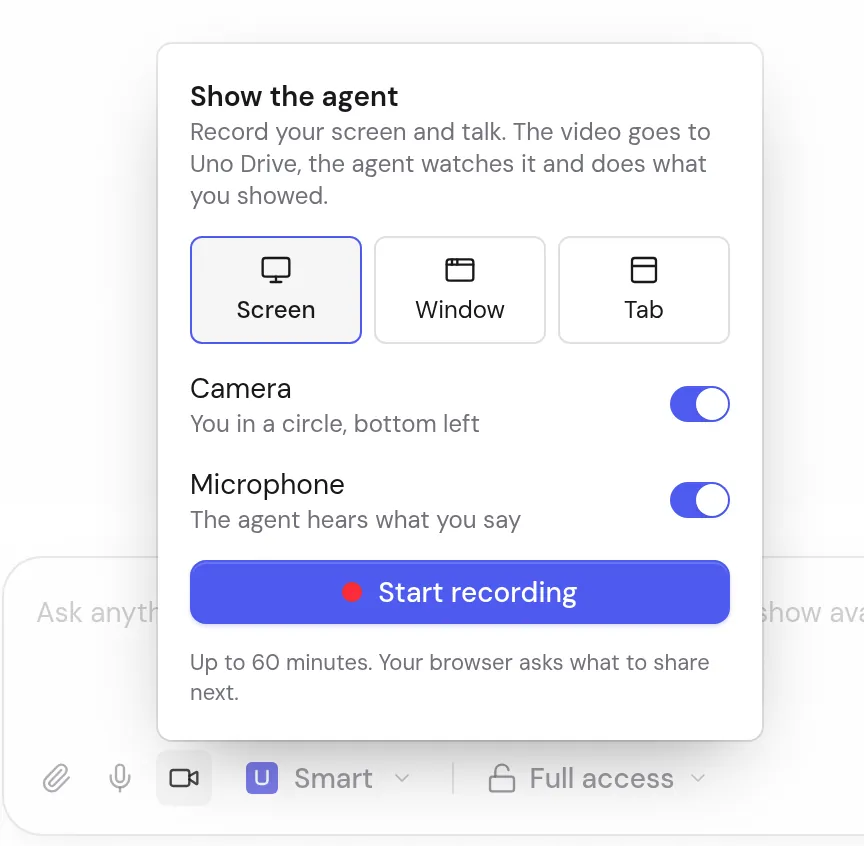
Кнопка записи в чате снимает экран, камеру и голос — до 60 минут. Агент получает пересказ по секундам: куда вы показывали курсором, что нажимали и что говорили, — и берётся за дело. Запись сохраняется в Uno Drive и в библиотеку Notetaker, ссылка играет в браузере как Loom (и на iPhone). С 2 ноября агент точно слышит речь, а если расшифровать не удалось — так и говорит и переспрашивает.The record button in a chat captures your screen, camera and voice, up to 60 minutes. The agent gets a second-by-second account: where you pointed, what you clicked and what you said, and gets to work. The recording is saved to Uno Drive and the Notetaker library, and its link plays in the browser like Loom (iPhone too). Since November 2 the agent reliably hears your speech, and if it couldn't be transcribed it says so and asks.
Кнопка-камера в поле сообщения: запись экрана, окна или вкладки с камерой и голосом — агент посмотрит и сделаетThe camera button in the message box: record your screen, a window or a tab with camera and voice — the agent watches and does it
Как пользоватьсяHow to use it
В чате нажмите кнопку с камерой в поле ввода (Record your screen) — откроется окно Show the agent.
Выберите экран, окно или вкладку, покажите проблему и проговорите, что нужно.
Остановите запись — агент получит её и возьмётся за дело.
In a chat, press the camera button in the message box (Record your screen) to open Show the agent.
Pick a screen, a window or a tab, show the problem and say what you need.
Stop the recording, and the agent gets it and starts.
Uno Work: компьютеры и главнаяUno Work: computers and Home
1 ноябряNov 1 · 0.0.174
Подключите свой компьютерConnect your own computer
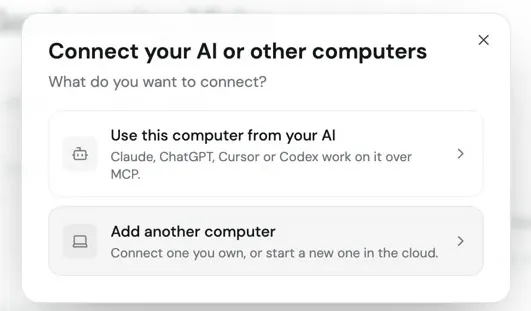
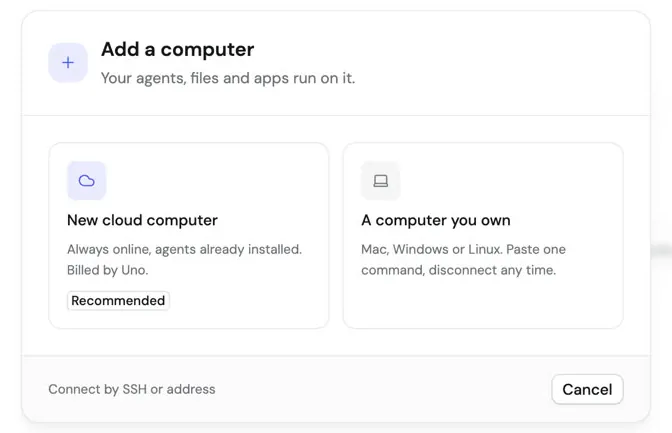
Ваш Mac, Windows PC или Linux-машина подключаются к Uno Work. Агенты запускают на нём команды и работают с файлами, пока он включён. Удобно, когда нужные файлы, программы или вход в сервисы есть только на вашем ноутбуке.Your Mac, Windows PC or Linux machine can join Uno Work. Your agents run commands and work with files on it while it is on. Handy when the files, programs or sign-ins you need live only on your laptop.
Connect your AI or other computers: дать компьютер своему ИИ или добавить ещё один компьютерConnect your AI or other computers: give this computer to your AI, or add another computerAdd a computer: новый в облаке или свой Mac, Windows, Linux одной командойAdd a computer: a new cloud one, or your own Mac, Windows or Linux with one command
Как пользоватьсяHow to use it
Главная Work → Connect your AI or other computers.
Add another computer → скопируйте команду.
Вставьте её в терминал на своём компьютере — через несколько секунд он появится в списке.
Work Home → Connect your AI or other computers.
Add another computer → copy the command.
Paste it into a terminal on your computer; it shows up in the list in a few seconds.
1 ноябряNov 1 · 0.0.174
Спокойная главная и файлы на всех компьютерахA calmer Home, and files on every computer
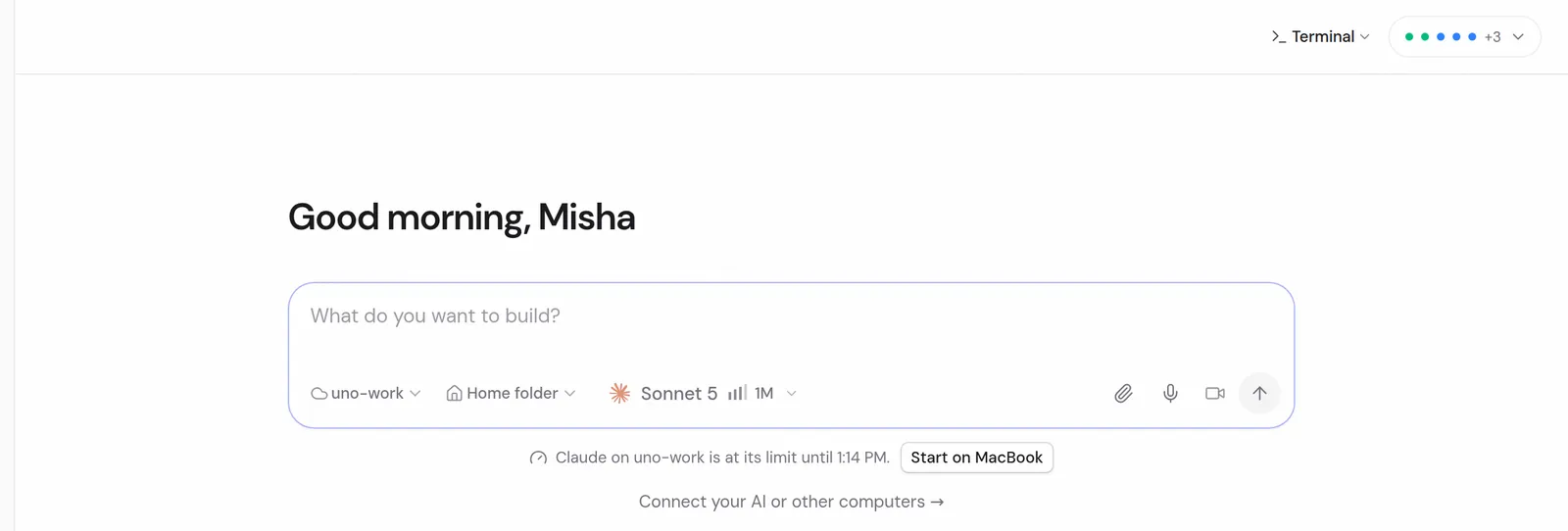
На главной компьютеры показаны точками, подсказки — только в первый визит. Модель, уровень рассуждений (столбики) и размер контекста собраны в один короткий чип под полем, например «Sonnet 5 · 1M». Files переключается между всеми подключёнными компьютерами и облачным хранилищем.Home shows computers as dots, and tips appear only on your first visit. The model, its reasoning level (bars) and the context size sit in one short chip under the box, such as "Sonnet 5 · 1M". Files switches between every connected computer and Cloud storage.
Главная: компьютеры — пять точек и «+3» вверху справа, под полем только модель, уровень рассуждения и контекстHome: your computers as five dots and “+3” at the top right; under the box just the model, reasoning level and context
Как пользоватьсяHow to use it
Files → вверху выбор компьютера или Cloud storage.
Кликните по чипу под полем, чтобы поменять уровень рассуждений и доступ.
Files → pick a computer or Cloud storage at the top.
Click the chip under the input to change the reasoning level and access.
2 ноябряNov 2 · 0.0.178
Чип компьютеров и Work легчеThe computers chip, and a lighter Work
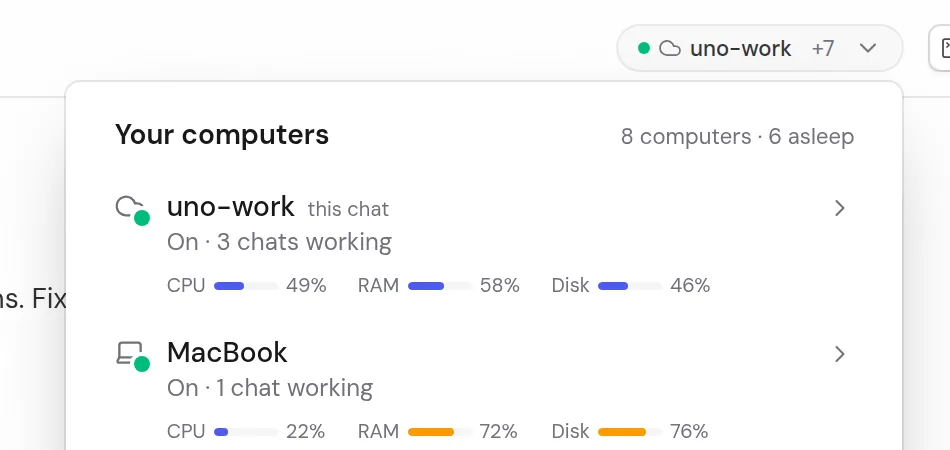
В чате чип показывает компьютер этого чата, а остальные сворачивает в «+N»; на главной — не больше пяти точек, проблемные первыми. Work проверяет компьютеры раз в 30 секунд вместо 3, меню больше не размывают фон — всё работает быстрее.In a chat the chip shows the chat's own computer and folds the rest into "+N"; Home shows at most five dots, problems first. Work checks computers every 30 seconds instead of 3, and menus no longer blur the background, so everything feels faster.
В шапке чата — компьютер этого чата и «+7» остальных; клик открывает их список с загрузкойThe chat header shows this chat's computer and “+7” for the rest; a click lists them with their load
Как пользоватьсяHow to use it
Кликните по чипу — откроется список всех компьютеров с состоянием.
Click the chip to see every computer and its state.
Uno Work: для разработчиковUno Work: for developers
2 ноябряNov 2 · 0.0.175 · 0.0.178
Pull requests прямо в WorkPull requests right in Work
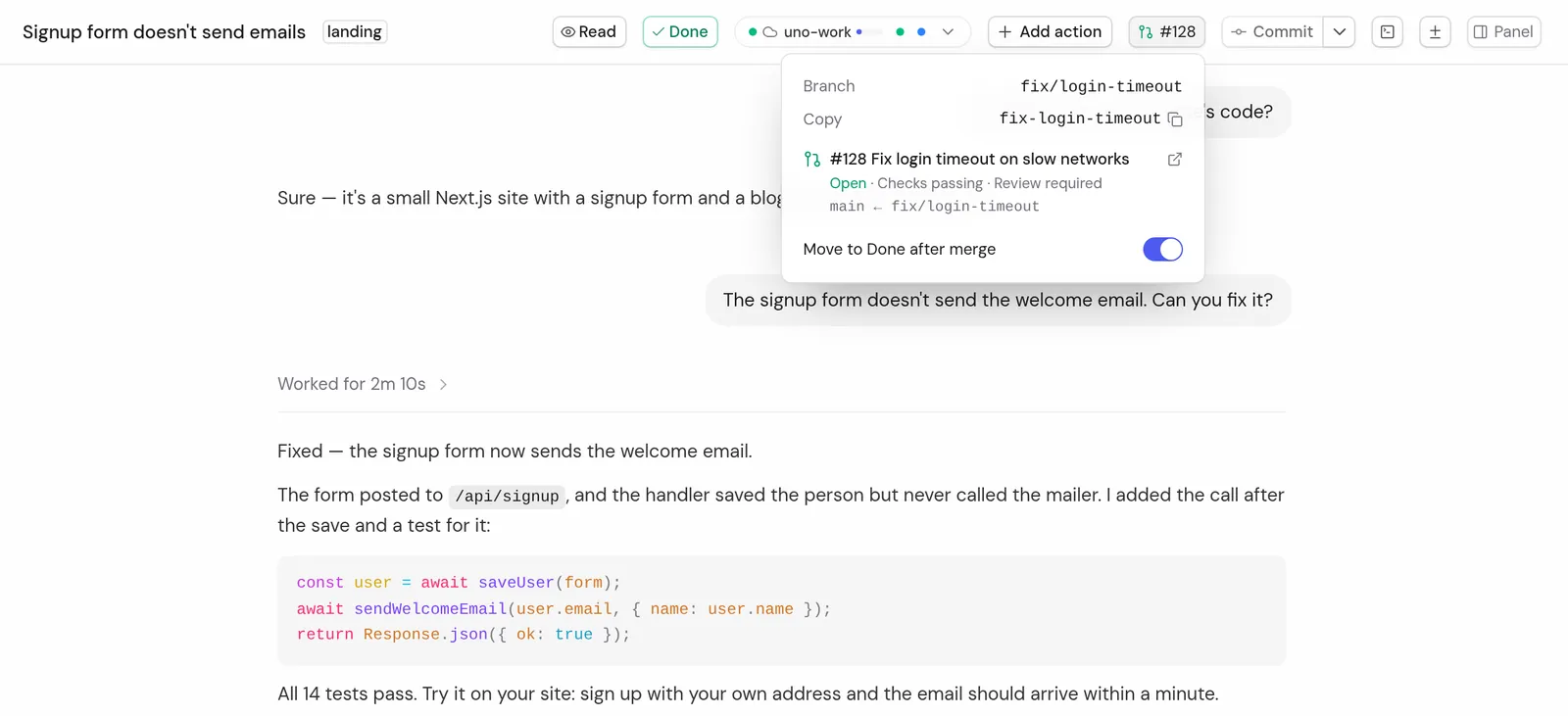
В Dev mode есть страница Pull requests: ваши PR на GitHub, GitLab, Bitbucket и Azure DevOps. Откройте PR в Work, посмотрите изменения и смёржите, одобрите или закройте его (на GitHub — ещё и откатите). Агент может следить за PR и вернуться в тот же чат, когда упала проверка, пришёл комментарий или появился конфликт.Dev mode has a Pull requests page with your PRs on GitHub, GitLab, Bitbucket and Azure DevOps. Open a PR in Work, look at the changes and merge, approve or close it (GitHub can also revert). The agent can watch a PR and come back to the same chat when a check fails, a comment arrives or a conflict appears.
В Dev mode у чата его pull request: статус, проверки, переход в Done после mergeIn Dev mode a chat shows its pull request: status, checks, and moves to Done after mergeDev mode (значок </>) добавляет в сайдбар вкладку PRs: открытые, слитые и закрытые pull request, ваши и на ревьюDev mode (the </> icon) adds a PRs tab: open, merged and closed pull requests, yours and those to review
Как пользоватьсяHow to use it
Включите Dev mode (значок </> в боковой панели или Settings → Dev mode).
Откройте вкладку PRs: открытые, смёрженные и закрытые PR.
GitHub и GitLab работают через gh / glab на компьютере; Bitbucket — Settings → Source Control; Azure — az login.
В чате попросите: «следи за этим PR и почини, если упадут тесты».
Turn on Dev mode (the </> icon in the sidebar or Settings → Dev mode).
Open the PRs tab: open, merged and closed pull requests.
GitHub and GitLab work through gh / glab on the computer; Bitbucket via Settings → Source Control; Azure via az login.
In a chat ask: "watch this PR and fix it if the tests fail".
Uno Work на телефоне — через приложение T3 CodeUno Work on your phone with the T3 Code app
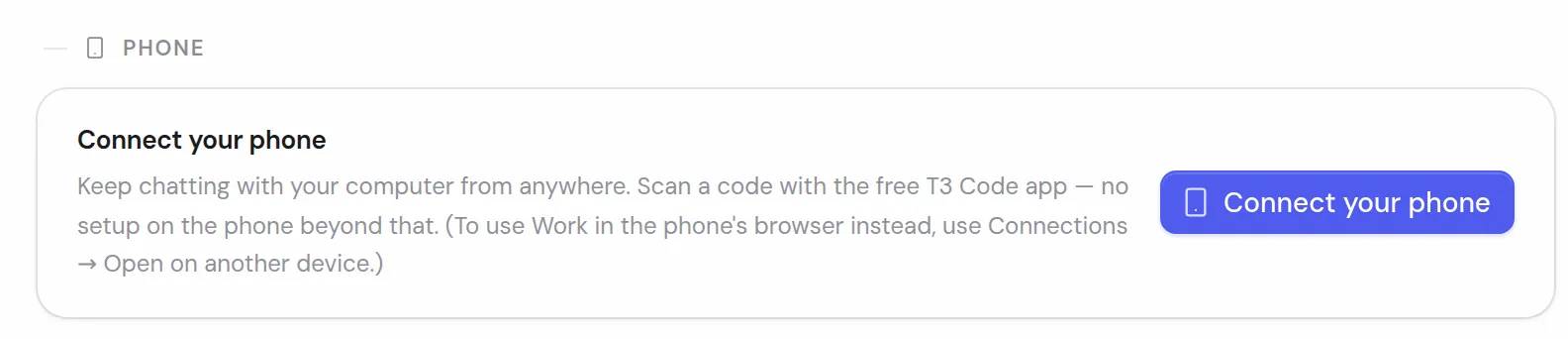
Бесплатное приложение T3 Code из App Store и Google Play снова подключается к Uno Work. С телефона видно чаты, можно писать, начать чат в проекте, ответить на вопросы и Allow агента, остановить ответ. Прочитанное и непрочитанное синхронизируется между телефоном, браузером и десктопом.The free T3 Code app from the App Store and Google Play connects to Uno Work again. From your phone you see your chats, write, start a chat in a project, answer the agent's approvals and questions, and stop a reply. Read and unread follow you between the phone, the browser and the desktop app.
Connect your phone: продолжайте чаты с телефона через бесплатное приложение T3 Code — сканируете код и всёConnect your phone: keep chatting from your phone in the free T3 Code app — just scan a code
Как пользоватьсяHow to use it
Поставьте T3 Code из App Store или Google Play.
В Uno Work: Settings → Phone (в Dev mode; без него — Assistants & phone) → Connect your phone — появится QR-код.
В приложении: Add environment → камера → наведите на QR.
Install T3 Code from the App Store or Google Play.
In Uno Work: Settings → Phone (in Dev mode; otherwise Assistants & phone) → Connect your phone to get a QR code.
In the app: Add environment → camera → point it at the code.
Uno Work: настройки и мелочиUno Work: settings and small things
2 ноябряNov 2 · 0.0.175
Settings → Keyboard: свои горячие клавишиSettings → Keyboard: your own shortcuts
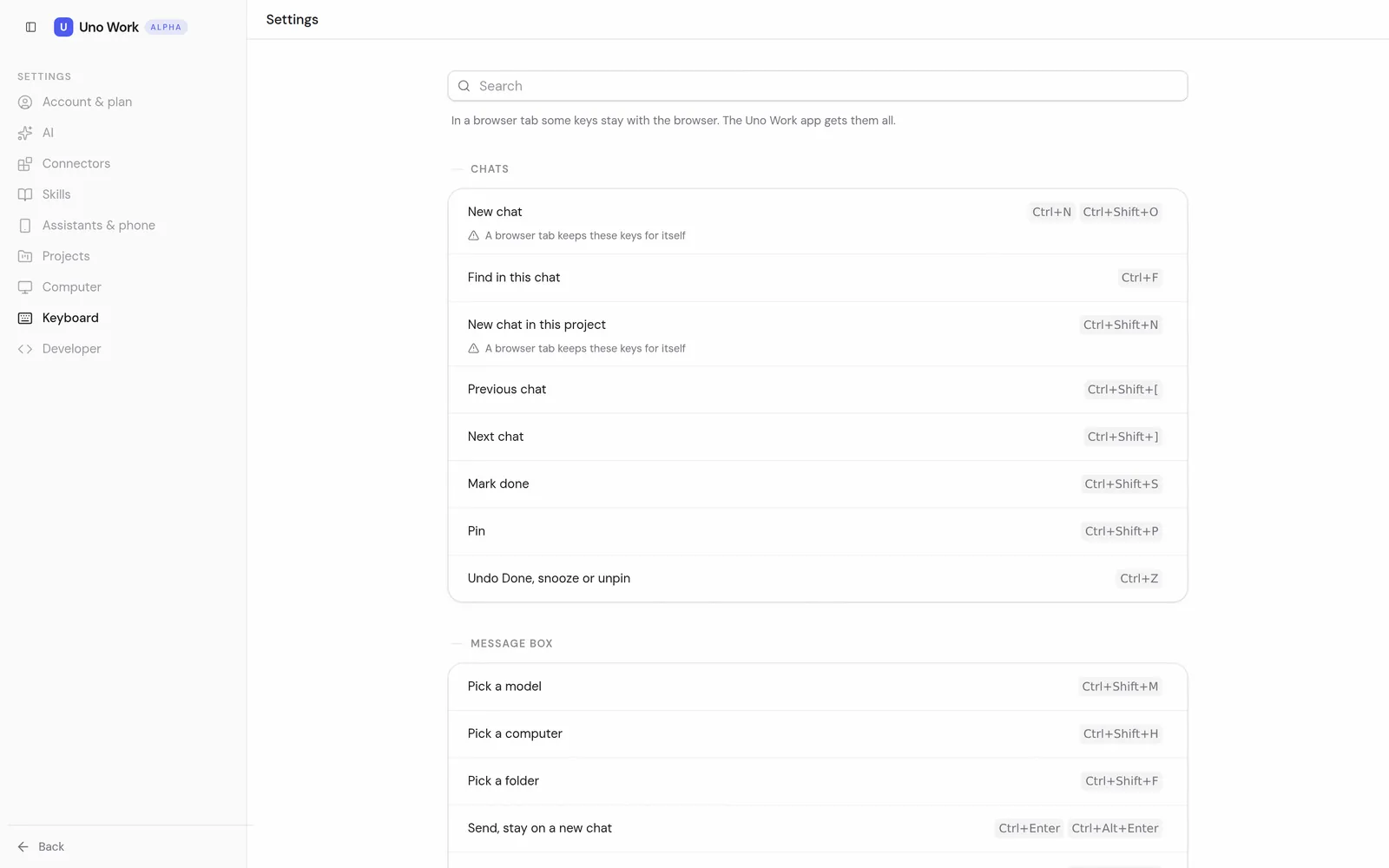
Все горячие клавиши Work на одной странице. Чтобы поменять, нажмите на сочетание и введите новое; Reset вернёт как было. ⌘Z и ⌘B теперь работают и из поля ввода.Every Work shortcut on one page. To change one, click it and press the new keys; Reset puts it back. ⌘Z and ⌘B now work from the input field too.
Settings → Keyboard: все сочетания клавиш одним списком с поискомSettings → Keyboard: every shortcut in one list, with search
Как пользоватьсяHow to use it
Settings → Keyboard.
Клик по сочетанию → нажмите новые клавиши.
Settings → Keyboard.
Click a shortcut, then press the new keys.
2 ноябряNov 2 · 0.0.175
Settings → Projects; модель и уровень в одном выбореSettings → Projects; model and level in one picker
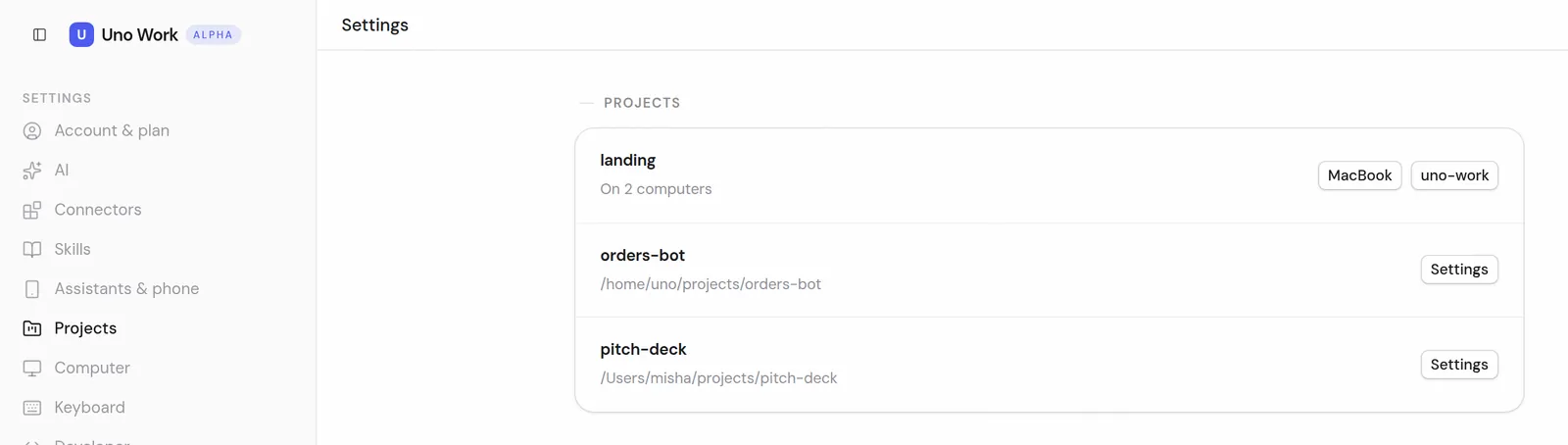
Все проекты — на одной странице настроек. Модель и уровень рассуждений выбираются в одном контроле: столбики уровня видны прямо на кнопке модели.All your projects on one settings page. The model and its reasoning level are picked in one control, with the level bars right on the model button.
Settings → Projects: все проекты на одной странице — на каких компьютерах и где лежатSettings → Projects: all your projects on one page — which computers they're on and where they liveПод полем ввода: модель, уровень рассуждения и размер контекста — в одном окнеUnder the message box: the model, the reasoning level and the context size — in one window
Как пользоватьсяHow to use it
Settings → Projects.
Кнопка модели под полем ввода → модель и уровень.
Settings → Projects.
The model button under the input → model and level.
2 ноябряNov 2 · 0.0.178
Черновик едет за проектом, статусы — в своём порядкеYour draft moves with the project; statuses in your own order
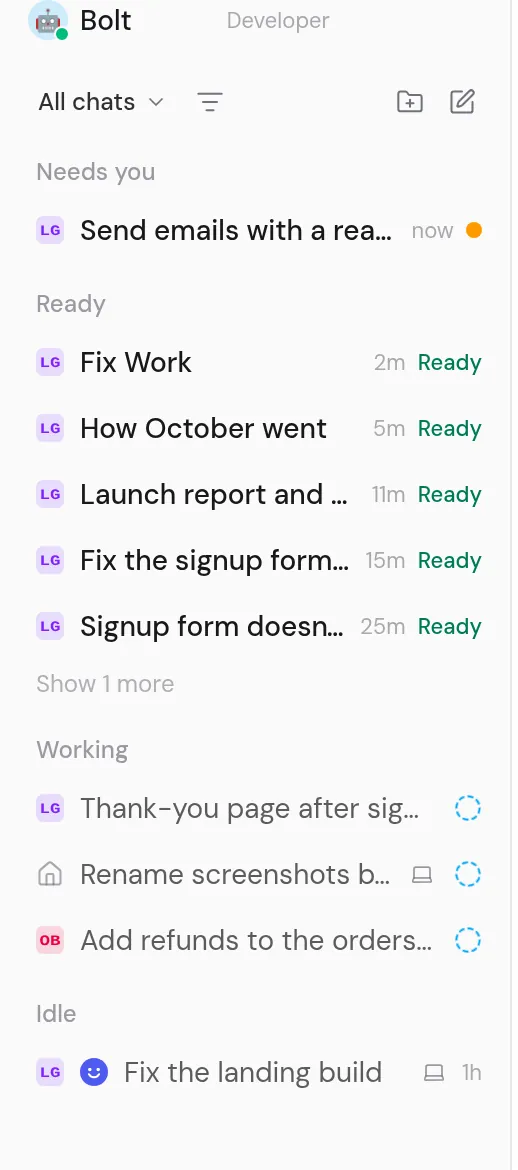
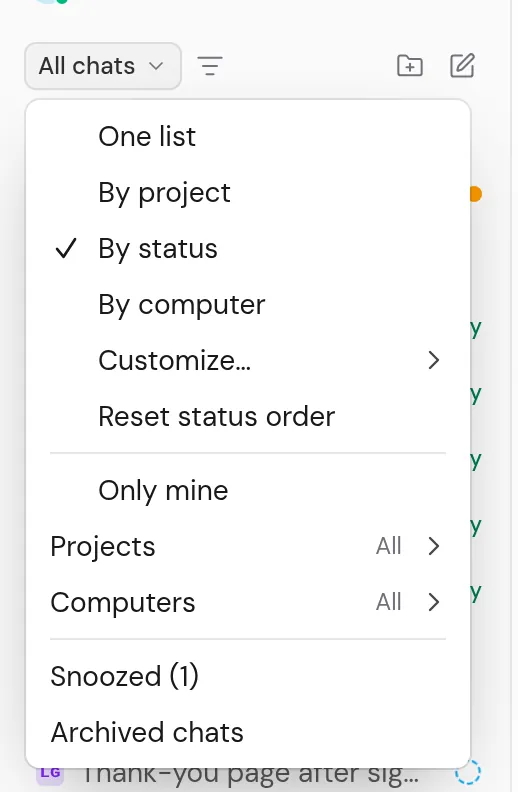
Неотправленное сообщение со скриншотом и файлами переезжает вместе с вами, когда вы меняете проект. Группы статусов в боковой панели (Working, Idle и другие) можно перетащить в свой порядок; по умолчанию Working выше Idle.An unsent message, with its screenshot and files, moves with you when you switch the project. Status groups in the sidebar (Working, Idle and others) can be dragged into your own order; by default Working sits above Idle.
Чаты по статусам: Needs you, Ready, Working, Idle — порядок групп можно менять перетаскиваниемChats by status: Needs you, Ready, Working, Idle — drag the groups into your own orderМеню вида: By status и Reset status order — вернуть порядок групп по умолчаниюThe view menu: By status, and Reset status order to go back to the default order
Как пользоватьсяHow to use it
В боковой панели: All chats ▾ → By status, затем перетащите заголовок группы.
Вернуть как было: All chats ▾ → Reset status order.
In the sidebar: All chats ▾ → By status, then drag a group header.
To undo: All chats ▾ → Reset status order.
28 октябряOct 28 · 0.0.158
Add a project и меню браузераAdd a project, and the browser menu
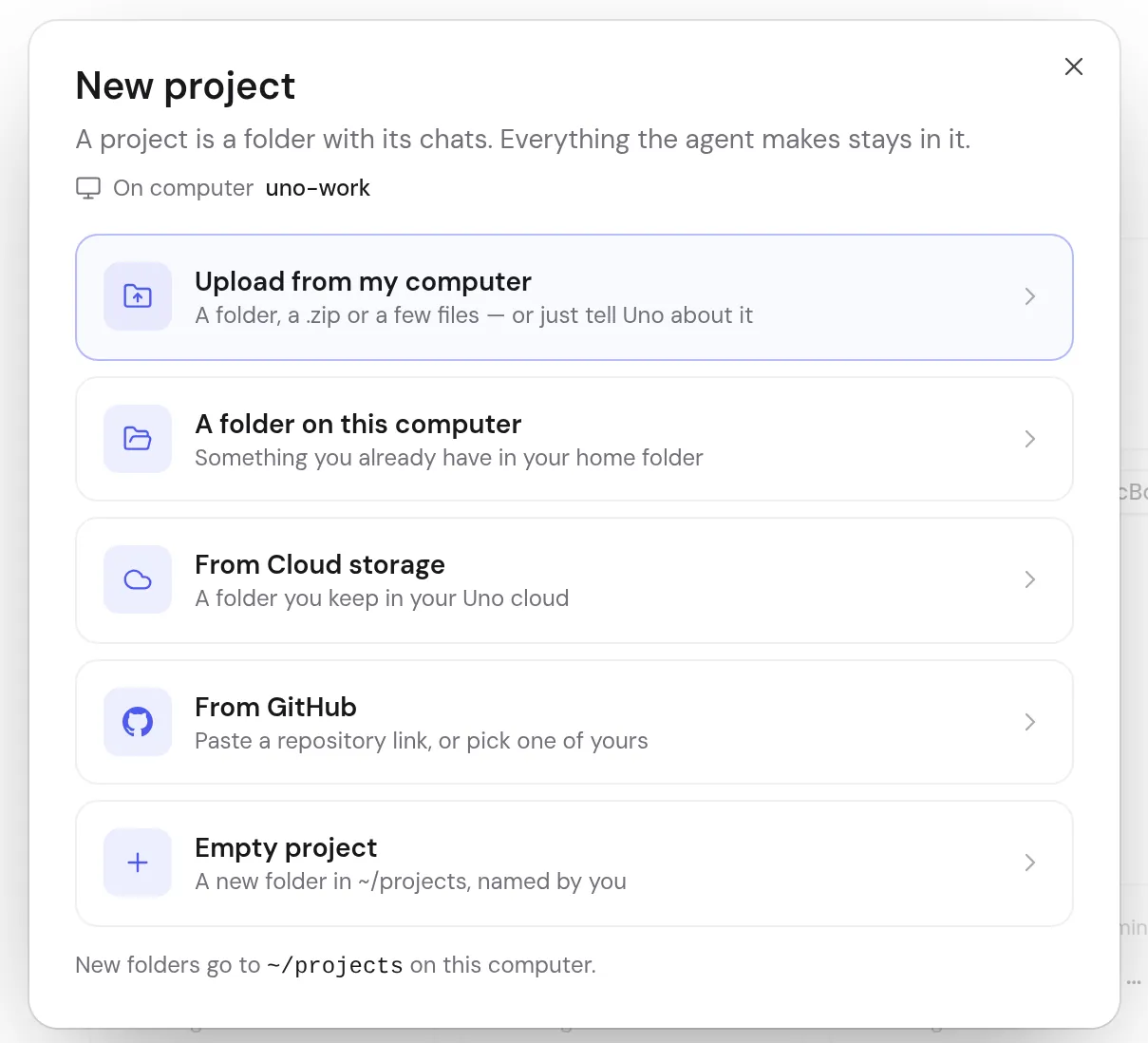
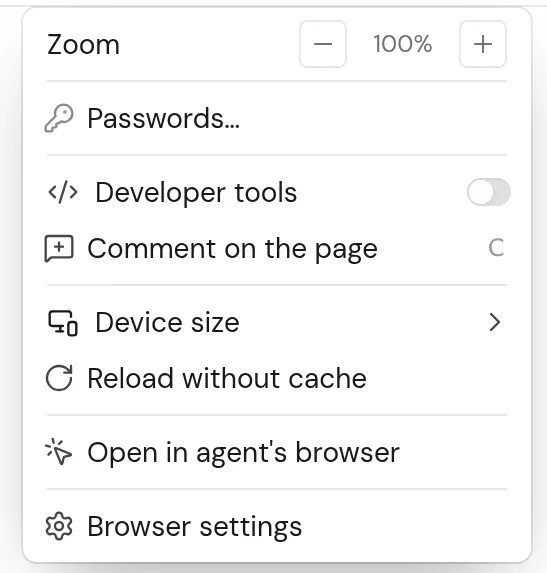
Проект добавляется прямо из боковой панели: папка на компьютере или репозиторий с GitHub. У встроенного браузера Work одно меню ⋯ со всем нужным, включая масштаб − 100% +; инструменты разработчика выключены по умолчанию.Add a project straight from the sidebar: a folder on the computer or a GitHub repository. Work's built-in browser has one ⋯ menu with everything, including zoom − 100% +; developer tools are off by default.
Кнопка Add a project — рядом с All chats в сайдбареThe Add a project button, next to All chats in the sidebarНовый проект: загрузить с компьютера, папка на этом компьютере, из облака, из GitHub или пустойNew project: upload from your computer, a folder on this computer, from Cloud storage, from GitHub, or emptyМеню ⋯ встроенного браузера: зум − 100% +, пароли, комментарий к странице, размер устройстваThe ⋯ menu of the built-in browser: zoom − 100% +, passwords, comment on the page, device size
Как пользоватьсяHow to use it
Боковая панель → кнопка Add a project рядом с All chats → окно New project.
В браузере Work: ⋯ справа сверху.
Sidebar → the Add a project button next to All chats → New project.
In Work's browser: ⋯ at the top right.
КонсольConsole
1 ноябряNov 1
Ask Uno: спросите про аккаунт — ответ графикомAsk Uno: ask about your account and get a chart
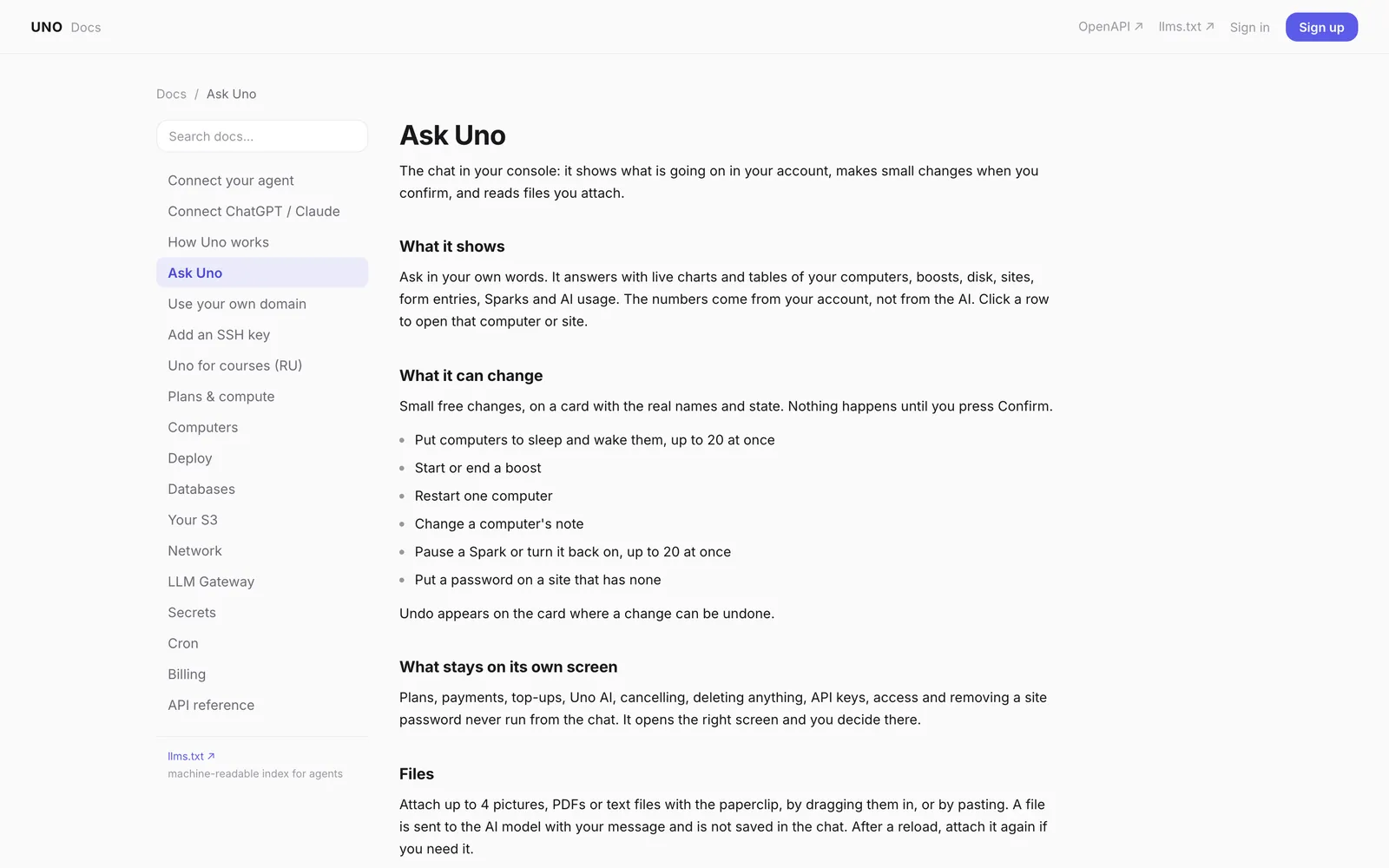
Чат в консоли отвечает живыми графиками и таблицами по вашему аккаунту: компьютеры, расходы, сайты, Spark. Клик по строке открывает этот компьютер или сайт. Простые действия — усыпить компьютер, включить буст, поставить Spark на паузу, закрыть сайт паролем — он делает сам: вы видите карточку с настоящими именами и жмёте Confirm. Можно прикладывать картинки, PDF и текстовые файлы. Тарифы, оплата и удаление остаются на своих экранах, а работа на компьютере — в Uno Work.The chat in your console answers with live charts and tables from your account: computers, spending, sites, Spark. Click a row to open that computer or site. It does simple things itself, such as putting a computer to sleep, starting a boost, pausing a Spark or putting a password on a site: you see a card with the real names and press Confirm. You can attach pictures, PDFs and text files. Plans, payments and deleting stay on their own screens, and work on a computer goes to Uno Work.
Справка по Ask Uno: чат в консоли показывает аккаунт графиками и таблицами, делает мелкие изменения только после Confirm и читает вложенияAsk Uno docs: the console chat shows your account in charts and tables, makes small changes only after you press Confirm, and reads attached files
Как пользоватьсяHow to use it
console.uno.place → Ask Uno.
Спросите: «сколько я потратил за неделю и на что?» или «усыпи компьютеры, которые простаивают».
Проверьте карточку и нажмите Confirm.
console.uno.place → Ask Uno.
Ask: "how much did I spend this week and on what?" or "put idle computers to sleep".
Agents & API: подключить свой ИИ в одном местеAgents & API: connect your AI in one place
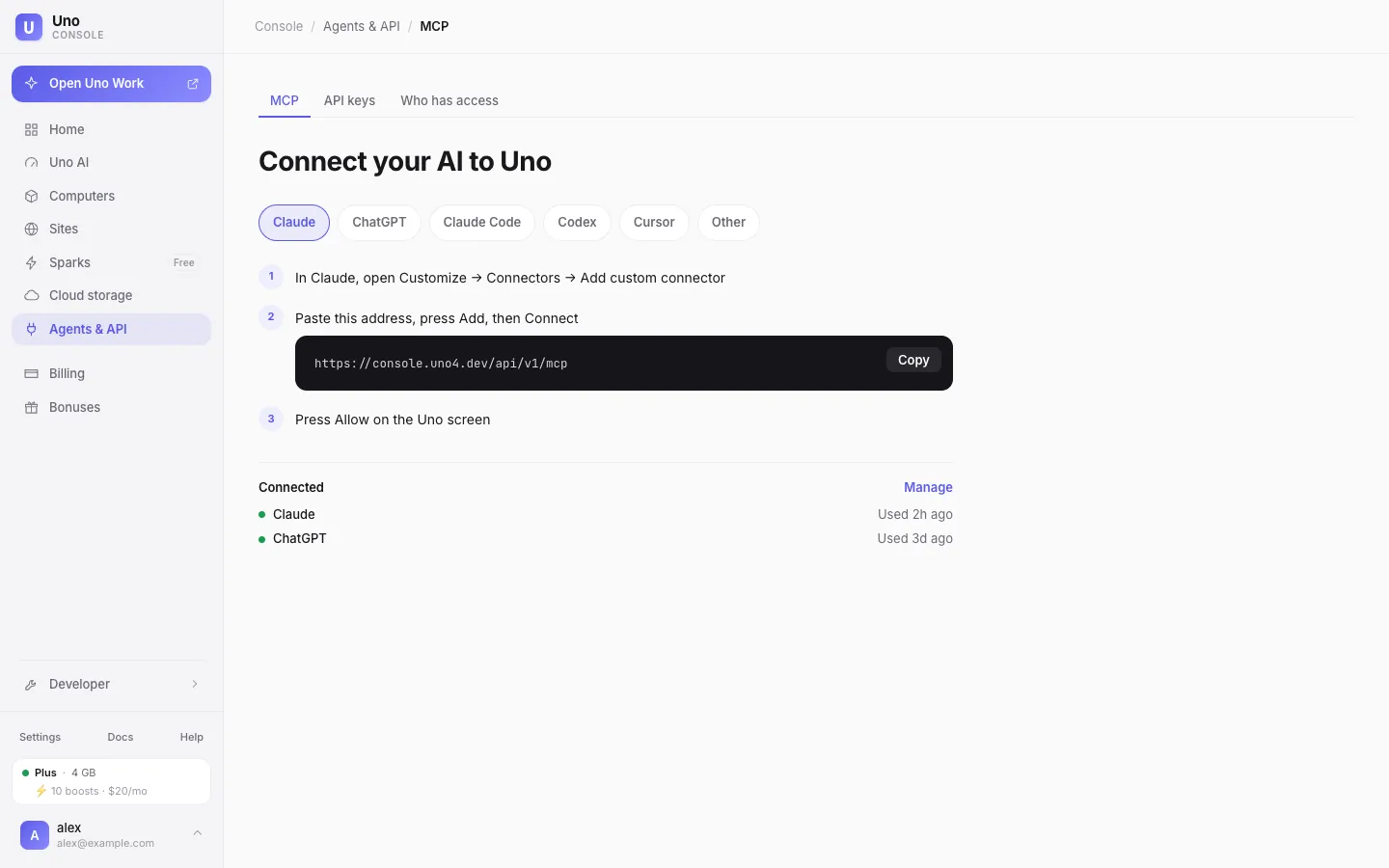
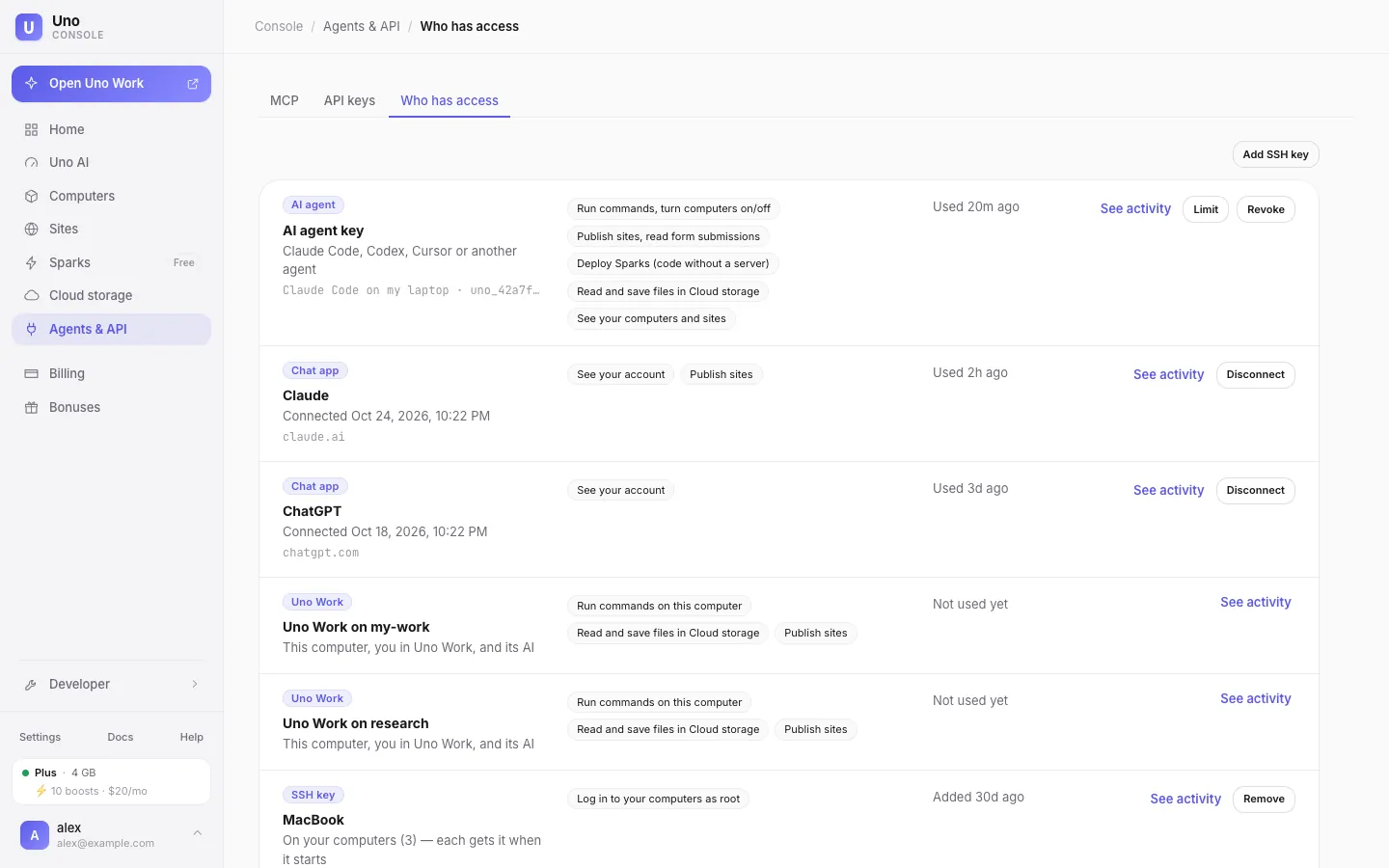
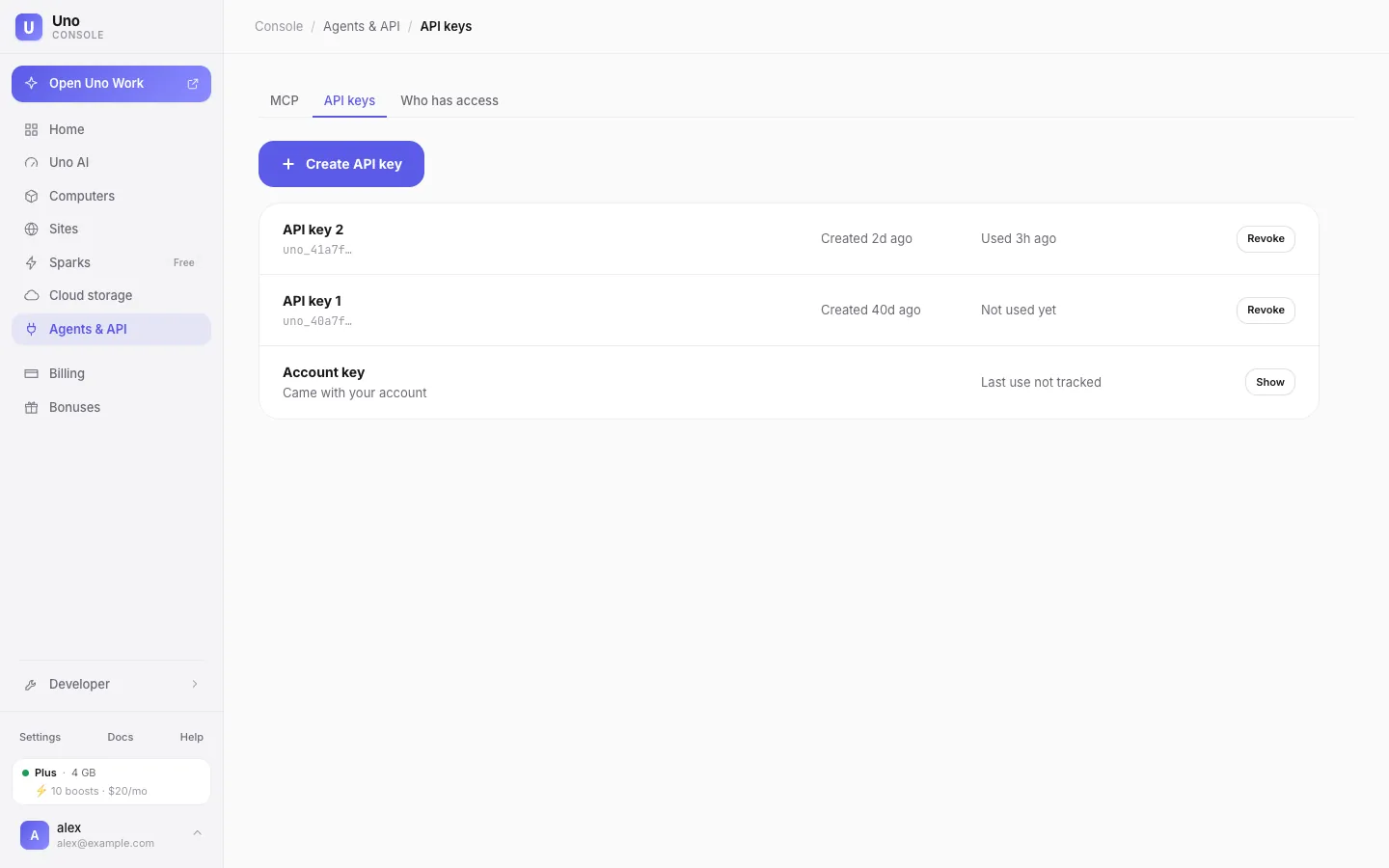
Новый раздел в главном меню консоли. Выберите Claude, ChatGPT, Claude Code, Codex, Cursor или bb, скопируйте одну строку и войдите через Uno — API-ключ не нужен. Рядом — API-ключи и список тех, у кого есть доступ. Вкладка MCP теперь называется Connect.A new section in the console's main menu. Pick Claude, ChatGPT, Claude Code, Codex, Cursor or bb, copy one line and sign in with Uno: no API key needed. API keys and the list of who has access sit next to it. The MCP tab is now called Connect.
Agents & API: выбрать Claude, ChatGPT, Claude Code, Codex или Cursor, скопировать адрес, войти через Uno — ключ не нуженAgents & API: pick Claude, ChatGPT, Claude Code, Codex or Cursor, copy one address, sign in with Uno — no key neededWho has access: все ключи, чат-приложения, Uno Work и SSH-ключи в одном списке, с правами и кнопками Limit / RevokeWho has access: every key, chat app, Uno Work and SSH key in one list, with rights and Limit / Revoke buttonsAPI keys: создать ключ, видно, когда им пользовались, отозвать одной кнопкойAPI keys: create a key, see when it was last used, revoke it in one click
Как пользоватьсяHow to use it
console.uno.place → Agents & API → Connect.
Выберите свой ИИ → скопируйте строку → вставьте у себя.
Отозвать доступ: Agents & API → Who has access.
console.uno.place → Agents & API → Connect.
Pick your AI, copy the line, paste it on your side.
Видно временные компьютеры — и можно оставить нужныйTemporary computers are labelled, and you can keep one
Когда агент запускает машину со сроком жизни, список Computers и страница машины так и пишут: «Temporary · deletes in 8 min» — и каким ключом она запущена. Одним кликом машину можно оставить навсегда или продлить на час.When an agent starts a machine with a lifetime, the Computers list and the machine's page say so: "Temporary · deletes in 8 min", and which key started it. One click keeps the machine for good or gives it another hour.
Как пользоватьсяHow to use it
console.uno.place → Computers → метка Temporary.
На странице машины: Keep или +1 hour.
console.uno.place → Computers → the Temporary label.
On the machine's page: Keep or +1 hour.
28 октябряOct 28
Агент на облачном компьютере: выбор до регистрации, цены для АмерикAn agent on a cloud computer: choose before signing up; Americas prices
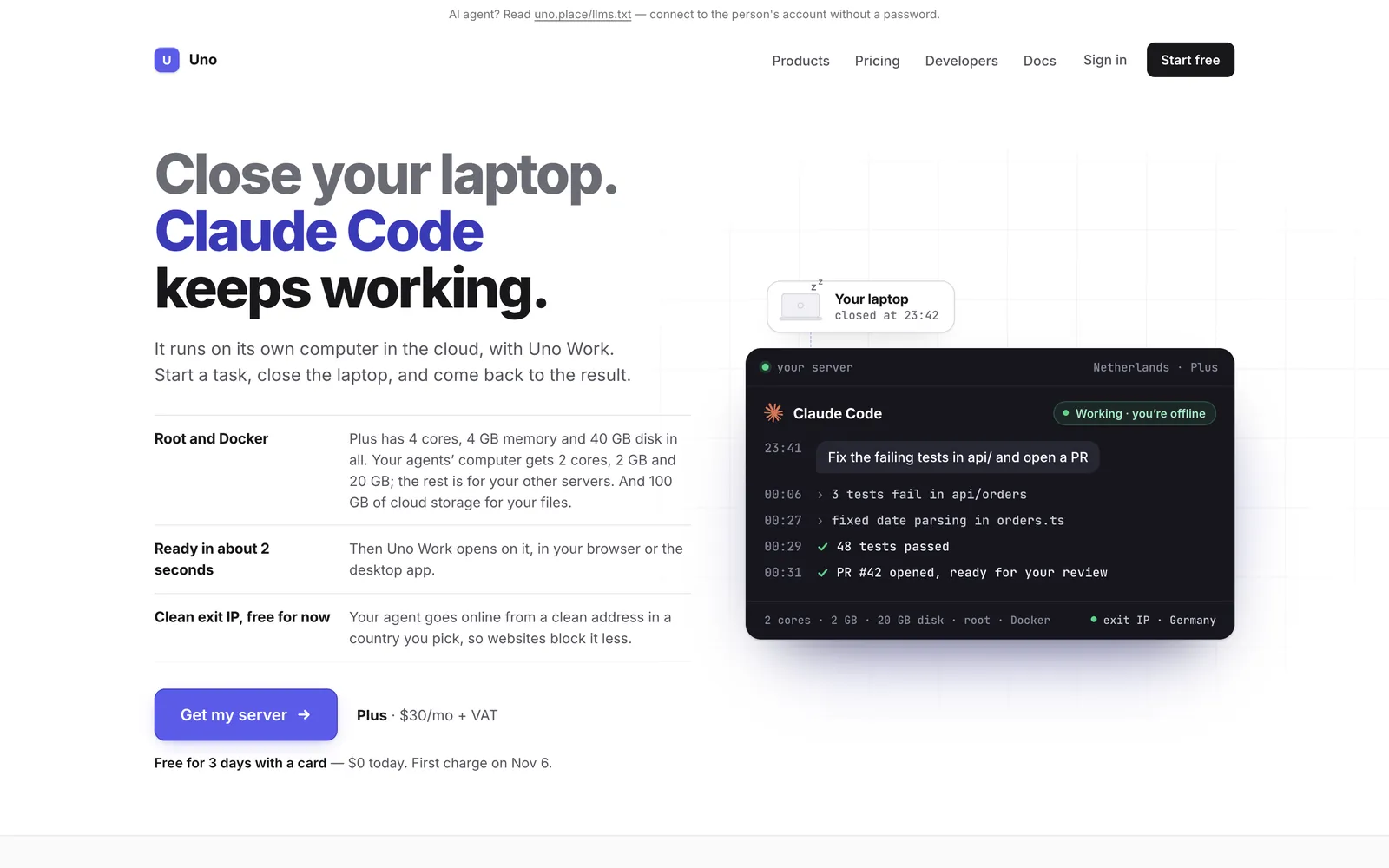
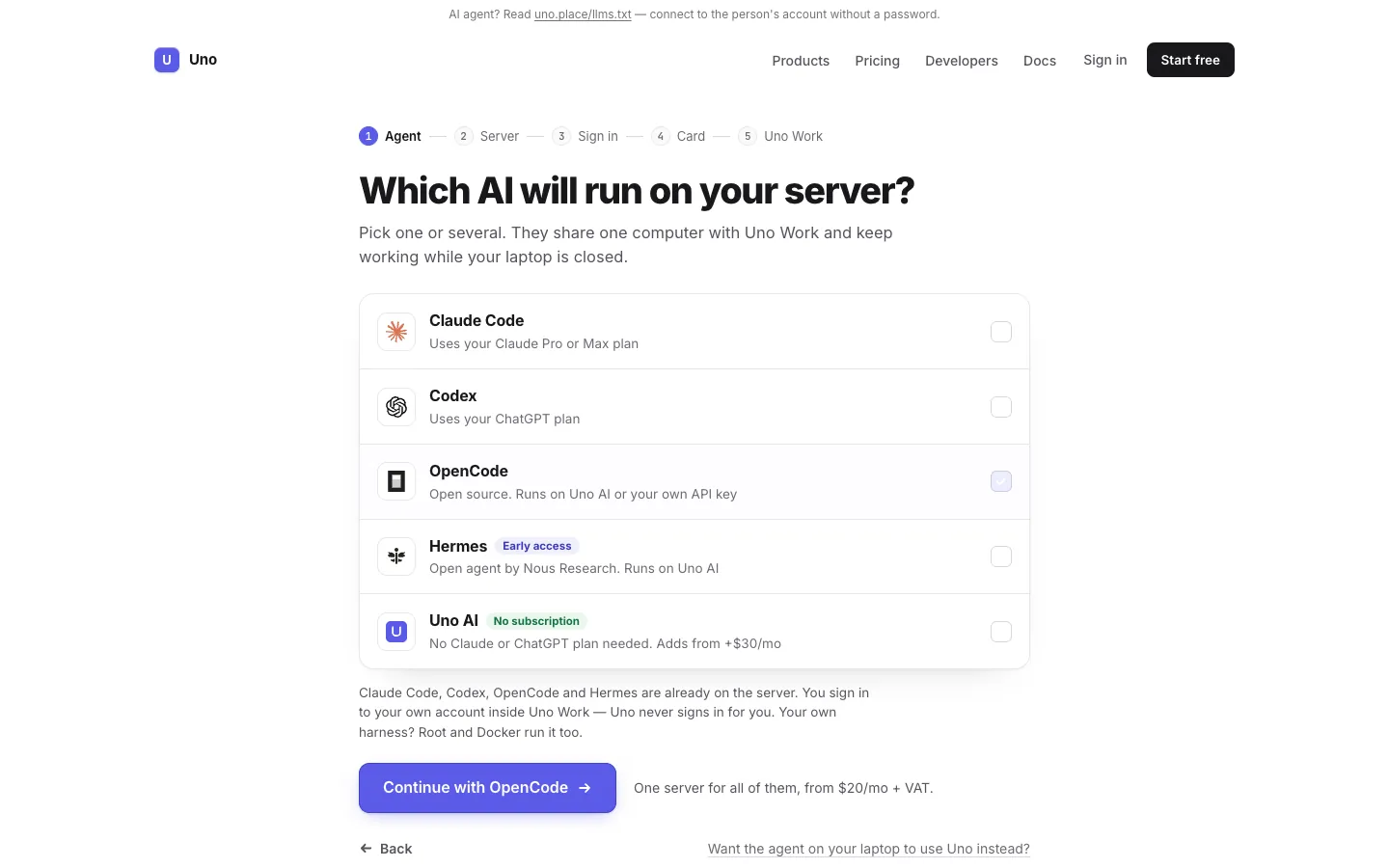
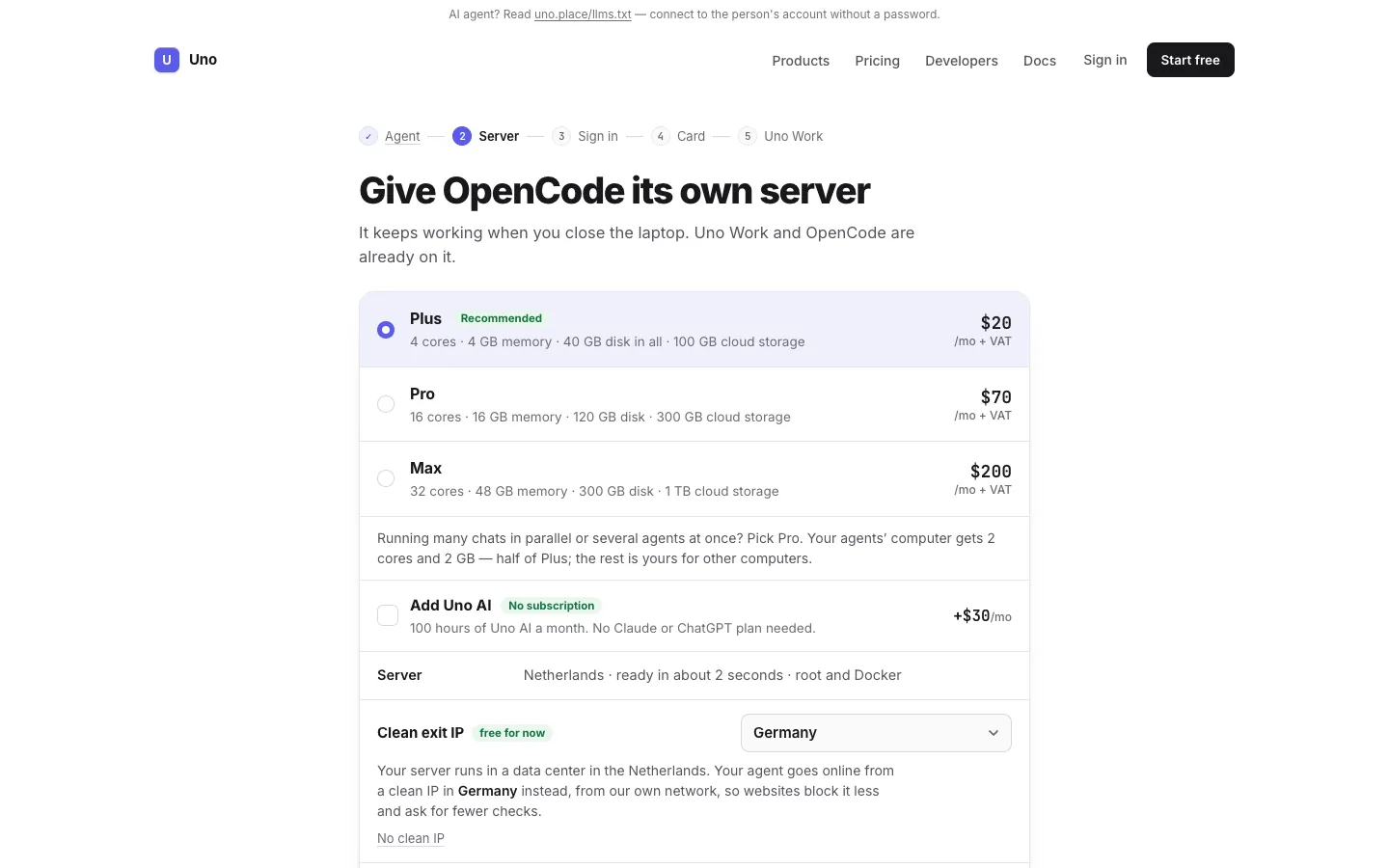
На uno.place/agent сначала выбираете агента, размер компьютера и страну чистого IP (Clean exit IP), а регистрируетесь потом. Посетители из Америк видят свои цены: США — как и Нидерланды, Clean IP США входит в Plus.On uno.place/agent you first pick the agent, the computer size and the country of your Clean exit IP, and sign up after. Visitors from the Americas see their own prices, with a US Clean IP included in Plus.
uno.place/agent: агент работает на своём облачном компьютере, пока ноутбук закрыт; Plus $30 в месяц для Америк (цены для Америк)uno.place/agent: your agent keeps working on its own cloud computer while the laptop is closed; Plus is $30 a month in the Americas (Americas prices)Шаг 1: какой ИИ будет работать — Claude Code, Codex, OpenCode, Hermes или Uno AI без подпискиStep 1: pick the AI — Claude Code, Codex, OpenCode, Hermes, or Uno AI with no subscriptionШаг 2: размер сервера и страна чистого выходного IP (цены для Европы)Step 2: pick the server size and the country of the clean exit IP (prices for Europe)
Тариф целиком на одном экранеYour whole plan on one screen
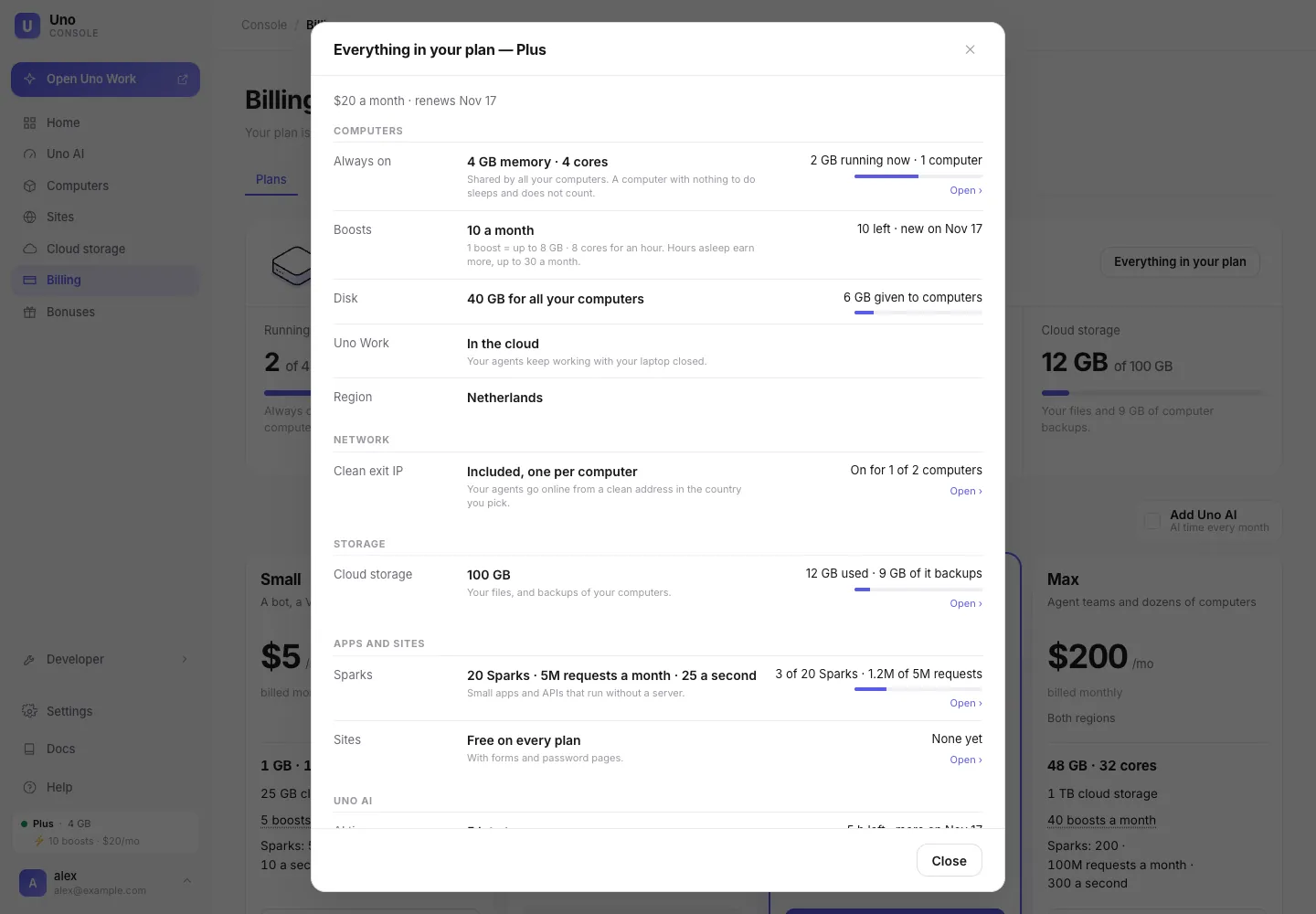
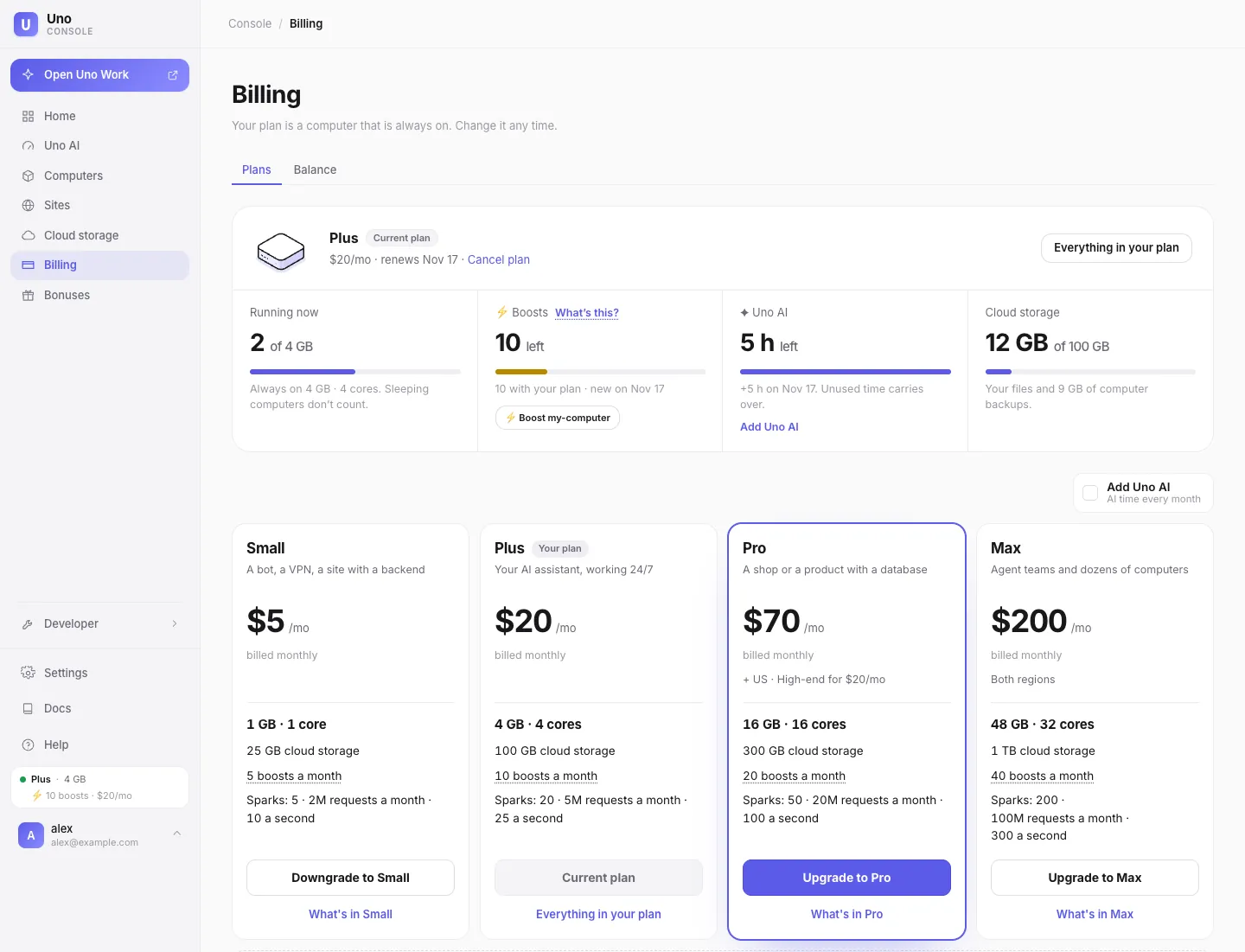
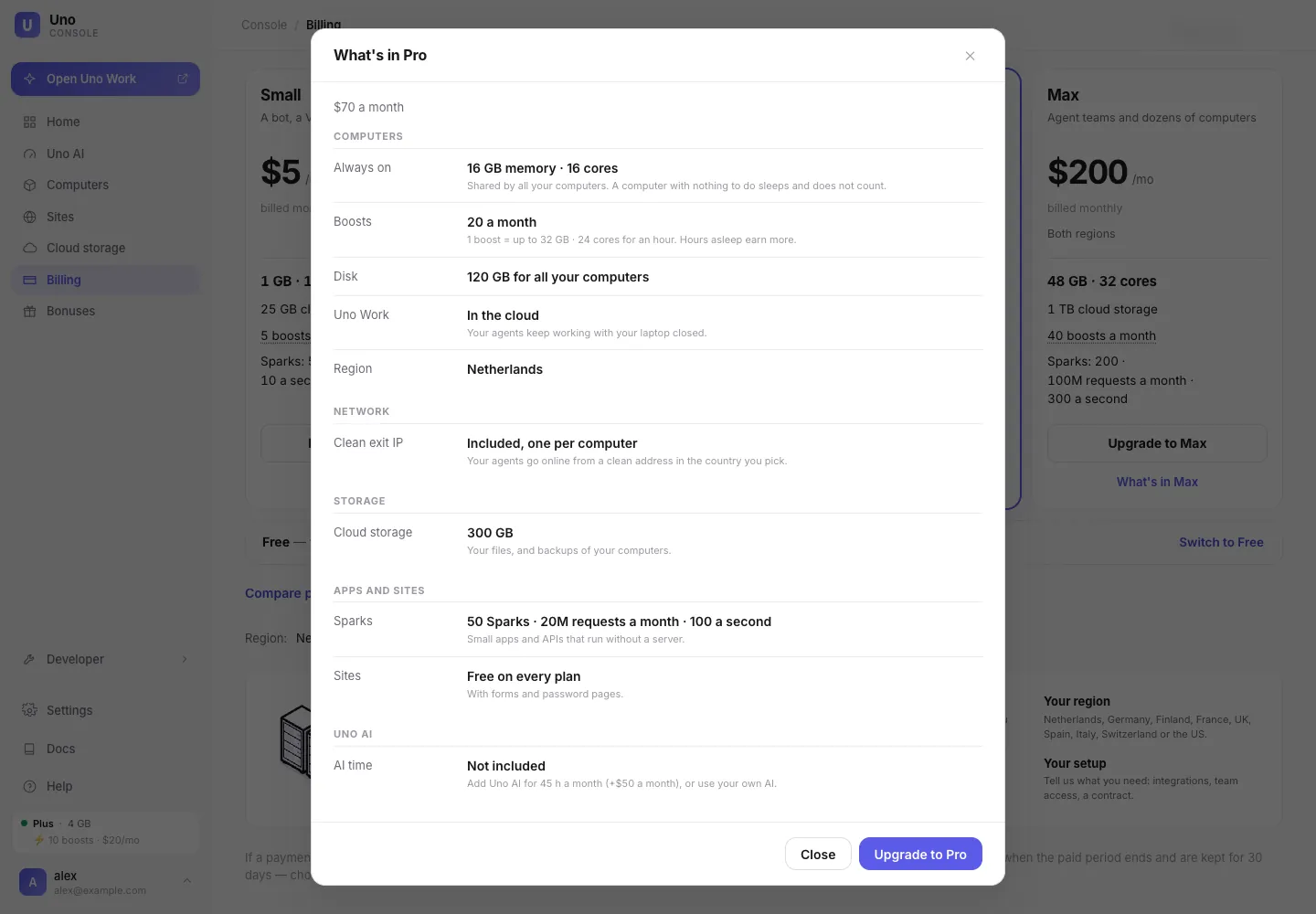
В Billing — одна карточка вашего тарифа и плитки того, что осталось: компьютеры, бусты, Uno AI, облачное хранилище. Кнопка Everything in your plan открывает всё, что входит в тариф, с остатками. На карточках других тарифов — What's in Pro и так далее: видно, что получите, до перехода.Billing shows one card for your plan and tiles for what is left: computers, boosts, Uno AI, cloud storage. Everything in your plan opens all that comes with the plan and how much is left. Other plans' cards have What's in Pro and so on, so you see what you get before you switch.
«Everything in your plan»: всё, что входит в тариф, и сколько уже занято — память, бусты, диск, Clean IP, хранилище, Sparks"Everything in your plan": all that comes with the plan and how much is used — memory, boosts, disk, clean IP, storage, SparksBilling: тариф и остатки одной строкой плиток, у каждой карточки — «What’s in …»Billing: the plan and what is left in one row of tiles, and "What’s in …" on every plan card«What’s in Pro» — что получите, перейдя на тариф"What’s in Pro" — what you get before you upgrade
Как пользоватьсяHow to use it
console.uno.place → Billing → Everything in your plan.
console.uno.place → Billing → Everything in your plan.
Для агентов и разработчиков: API, Spark, хранилищеFor agents and developers: API, Spark, storage
28 октябряOct 28
Машина под одну командуA machine for one command
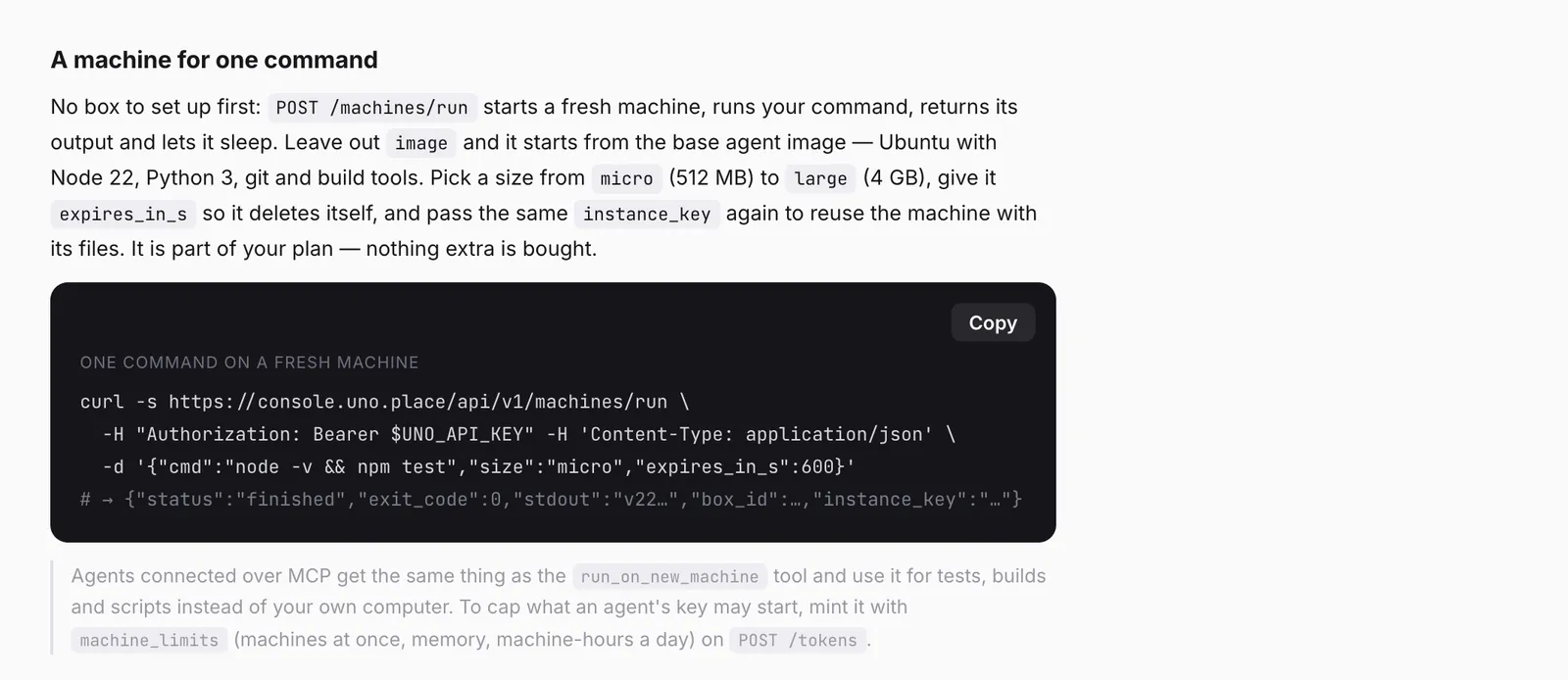
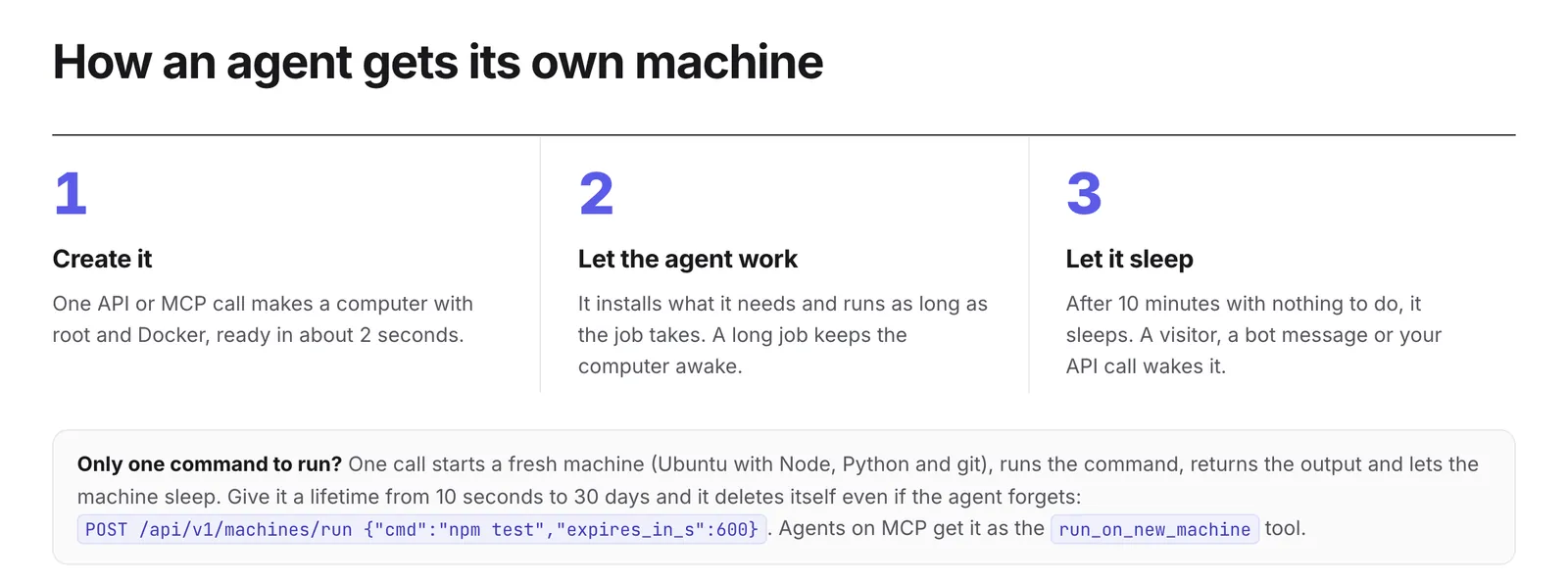
Агент поднимает свежую Linux-машину под одну команду: один запрос запускает её, выполняет команду, возвращает вывод и усыпляет машину. Внутри Ubuntu 24.04, Node 22, Python 3, git и инструменты сборки; размеры от 512 МБ до 4 ГБ, всё в рамках тарифа. С expires_in_s (от 10 секунд до 30 дней) машина удалится сама, даже если агент пропал. Можно ограничить, сколько машин может запускать ключ агента. По MCP это инструмент run_on_new_machine.An agent starts a fresh Linux machine for one command: one request starts it, runs the command, returns the output and lets the machine sleep. It has Ubuntu 24.04, Node 22, Python 3, git and build tools, in sizes from 512 MB to 4 GB, all inside your plan. With expires_in_s (10 seconds to 30 days) the machine deletes itself even if the agent disappears. You can cap what an agent's key may start. Over MCP it is the run_on_new_machine tool.
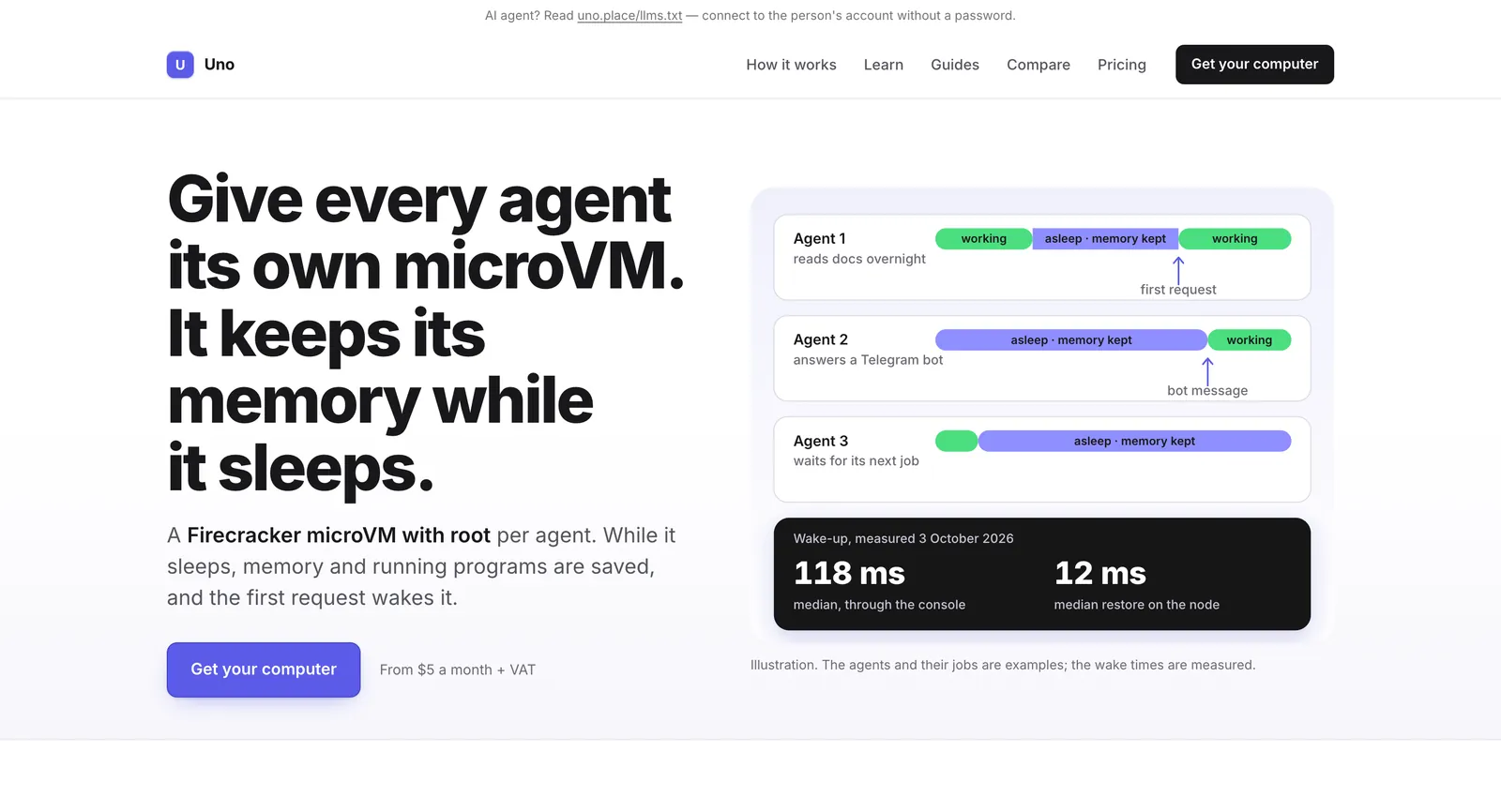
Справка: одна команда на свежей машине — curl на /machines/run с expires_in_s, ответ с выводомDocs: one command on a fresh machine — curl /machines/run with expires_in_s, the answer carries the outputuno.place/sandboxes: машина под одну команду удаляет себя через заданное время; для MCP — run_on_new_machineuno.place/sandboxes: a machine for one command deletes itself on time; on MCP it is run_on_new_machineAgent sandboxes: свой microVM каждому агенту, просыпается за 118 мсAgent sandboxes: a microVM per agent that wakes in 118 ms
Как пользоватьсяHow to use it
Отправьте запрос (пример ниже) с ключом, у которого есть boxes:write.
Send the request below with a key that has boxes:write.
Spark run: Linux-команда одним запросом, за 2–3 секундыSpark run: a Linux command in one request, in 2–3 seconds
Тот же адрес Spark, что запускает функцию без деплоя, теперь выполняет и shell-команды на Linux-машине вашего аккаунта и возвращает вывод. Обычно ответ приходит за 2–3 секунды (было 7). Из Spark-приложения — env.UNO.run(), из CLI — uno run "cmd". Машина без имени удаляется сразу после команды.The Spark address that runs a function without a deploy now runs shell commands too, on a Linux machine of your account, and returns the output. It usually answers in 2–3 seconds (it was 7). From a Spark app it is env.UNO.run(), from the CLI uno run "cmd". A machine without a name is deleted right after its command.
Как пользоватьсяHow to use it
Отправьте POST (пример ниже) или выполните uno run "python3 -V".
Spark-приложения будят себя самиSpark apps wake themselves
Приложение может попросить вызвать его позже или по расписанию cron — без работающего сервера (env.TIMERS). Вызов приходит минимум один раз, таймеры переживают перезапуски. На Free — 10 таймеров на приложение и не чаще раза в минуту, на платных — 100 и раз в секунду. Ещё: env.KV.batch пишет несколько ключей «всё или ничего» с проверкой версий, а исходящие fetch одного запроса идут параллельно (4 на Free, 8 на платных).An app can ask to be called later or on a cron schedule with no server running (env.TIMERS). A call comes at least once, and timers survive restarts. Free gets 10 timers per app, at most one call a minute; paid plans get 100, one a second. Also: env.KV.batch writes several keys all or none with version checks, and the outgoing fetch calls of one request run in parallel (4 on Free, 8 on paid plans).
Как пользоватьсяHow to use it
Добавьте в код приложения вызов env.TIMERS (пример ниже) и задеплойте.
Add an env.TIMERS call to your app (example below) and deploy.
await env.TIMERS.after(60, { path: "/tick", body: { job: 7 } });           // in a minute
await env.TIMERS.cron("0 9 * * 1-5", { path: "/digest", id: "digest" });   // 09:00 UTC on weekdays
S3-ключи для хранилища UnoS3 keys for your Uno storage
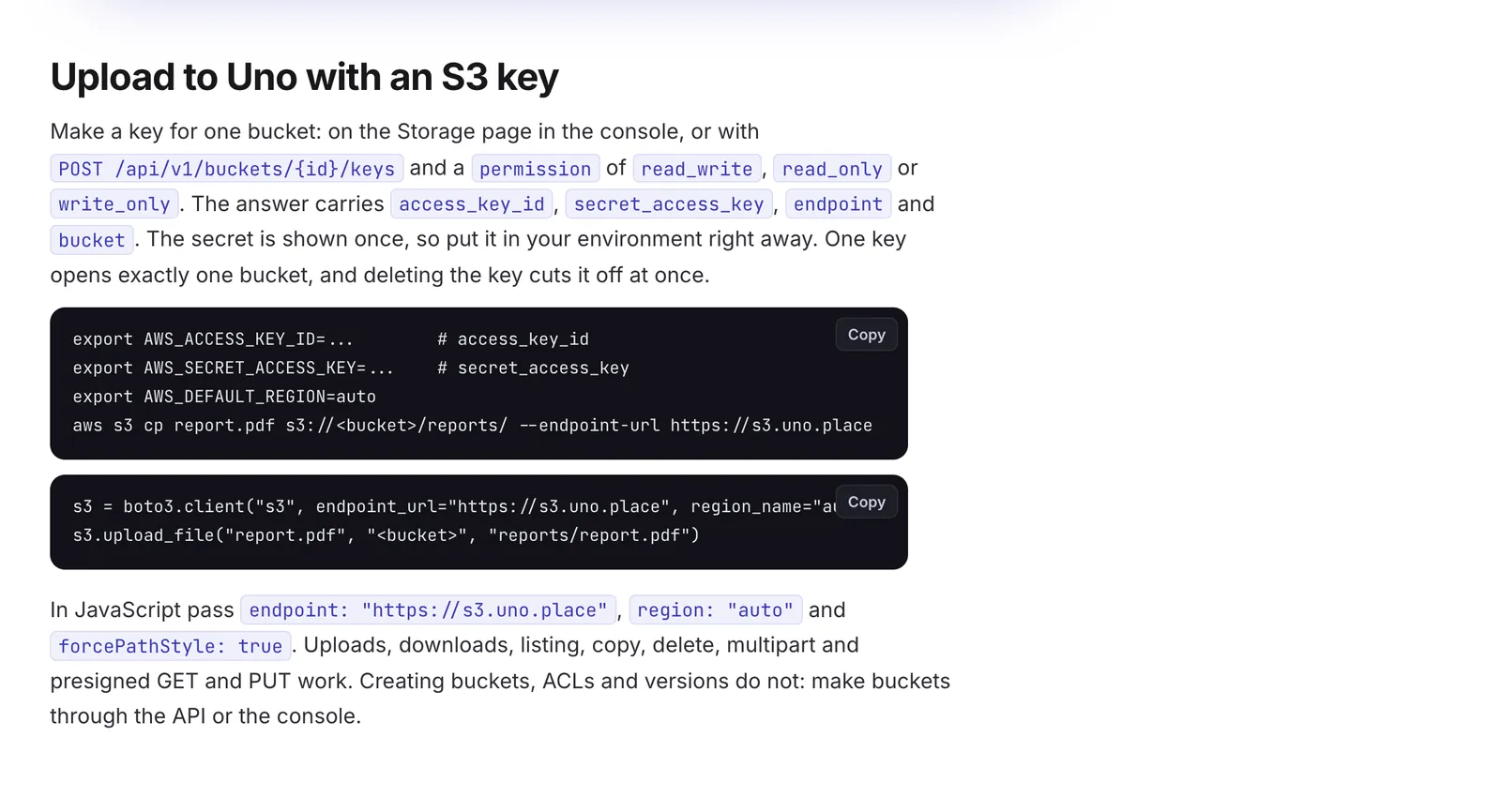
Сделайте ключ доступа к одному бакету и работайте с ним через aws s3, boto3, AWS SDK для JavaScript или любое приложение, которое просит «свой S3». Ключ бывает на чтение и запись, только чтение или только запись; отозвать — мгновенно. Адрес — s3.uno.place.Make an access key for one bucket and use it with aws s3, boto3, the AWS SDK for JavaScript or any app that asks for "your own S3". A key can be read and write, read only or write only, and you can revoke it at once. The endpoint is s3.uno.place.
Гайд: ключ на один бакет, s3.uno.place и код для aws s3 и boto3Guide: a key for one bucket, s3.uno.place, and code for aws s3 and boto3
Как пользоватьсяHow to use it
Попросите агента: «сделай S3-ключ на бакет my-bucket, только чтение» — или API: POST /api/v1/buckets/{id}/keys.
Подставьте ключ и endpoint https://s3.uno.place в своё приложение.
Ask your agent: "make a read-only S3 key for my-bucket", or call POST /api/v1/buckets/{id}/keys.
Put the key and the endpoint https://s3.uno.place into your app.
git push в Uno без SSH-ключаgit push to Uno without an SSH key
Пушить в git-remote Uno можно по HTTPS с API-ключом, у которого есть repos:write. Не нужно заводить SSH-ключ на новом ноутбуке или в CI.You can push to your Uno git remote over HTTPS with an API key that has repos:write. No SSH key to set up on a new laptop or in CI.
Как пользоватьсяHow to use it
Команда ниже, где http_url — адрес репозитория из консоли.
The command below, where http_url is the repository address from the console.
git -c http.extraHeader="Authorization: Bearer $UNO_API_KEY" push <http_url> main
31 октябряOct 31
Компьютер Uno как машина для bbAn Uno computer as a bb machine
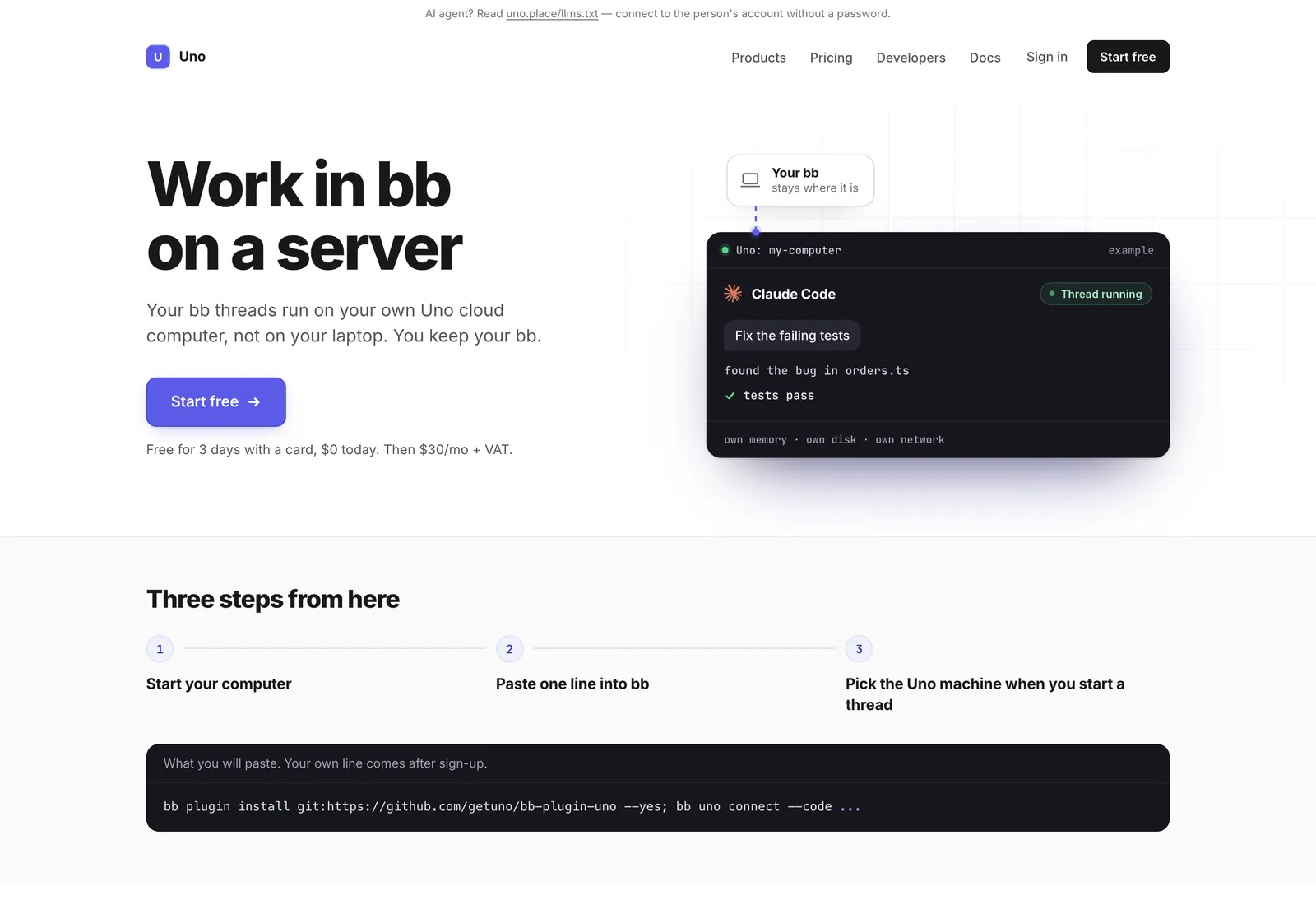
Если вы пользуетесь bb, компьютер Uno можно добавить как одну из его машин: вставьте одну строку в bb и выберите машину Uno, когда начинаете тред. Сам bb остаётся на ноутбуке, поэтому треды могут вставать, пока он выключен.If you use bb, your Uno computer can be one of its machines: paste one line into bb and pick the Uno machine when you start a thread. bb itself stays on your laptop, so threads may stop while it is off.
uno.place/bb: треды bb работают на облачном компьютере Uno; одна строка в bb, и машина Uno появляется в спискеuno.place/bb: bb threads run on an Uno cloud computer; paste one line into bb and the Uno machine shows up
Как пользоватьсяHow to use it
Уже в Uno: консоль → Agents & API → Connect → bb.
Новичкам: uno.place/bb.
Already on Uno: console → Agents & API → Connect → bb.
Ссылка, которая сразу открывает сайт под паролемA link that opens a password-protected site
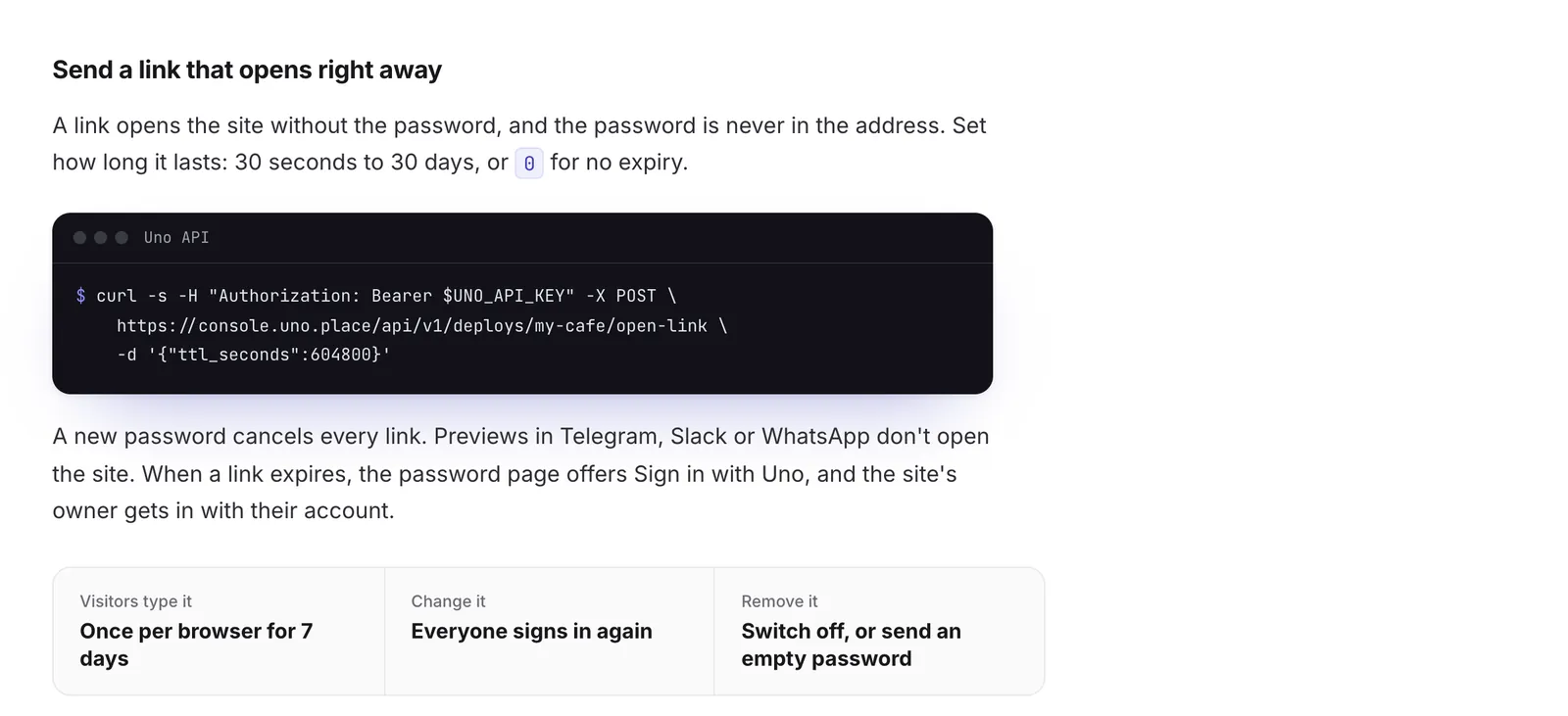
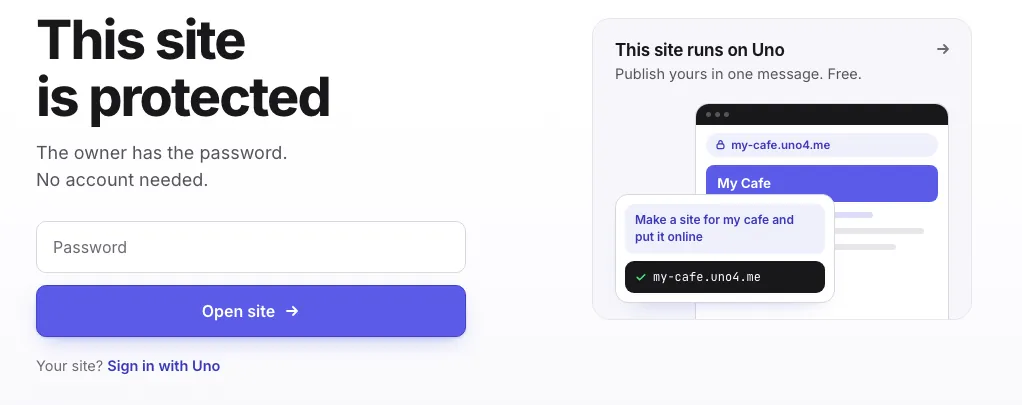
Сайт под паролем можно отправить ссылкой, которая открывается сразу — в Telegram или любом браузере. Пароля в адресе нет. Ссылка живёт от 30 секунд до 30 дней или бессрочно, а новый пароль отменяет все ссылки разом. Когда ссылка истекла, владелец сайта жмёт Sign in with Uno на странице пароля.Send a password-protected site as a link that opens right away, in Telegram or any browser. The password is never in the address. A link lasts from 30 seconds to 30 days or never expires, and a new password cancels them all. When a link expires, the site's owner taps Sign in with Uno on the password page.
Гайд: ссылка открывает сайт под паролем сразу, пароль не попадает в адрес; срок от 30 секунд до 30 днейGuide: a link opens a password-protected site right away, the password never goes into the address; it lasts 30 seconds to 30 daysСтраница пароля на сайте Uno: ввести пароль или войти через Uno, если сайт вашThe password page of an Uno site: type the password, or sign in with Uno if the site is yours
Как пользоватьсяHow to use it
Попросите агента в Uno Work: «дай ссылку на сайт на 7 дней» — он пришлёт готовую ссылку.
Через API: POST /api/v1/deploys/{slug}/open-link с {"ttl_seconds": N}.
Ask your agent in Uno Work: "give me a 7-day link to the site", and it sends the link.
Over the API: POST /api/v1/deploys/{slug}/open-link with {"ttl_seconds": N}.
29 октября · 1 ноябряOct 29 · Nov 1 · Notetaker 0.6 → 0.8
Notetaker: календари и записи экрана в одной библиотекеNotetaker: calendars, and screen recordings in one library
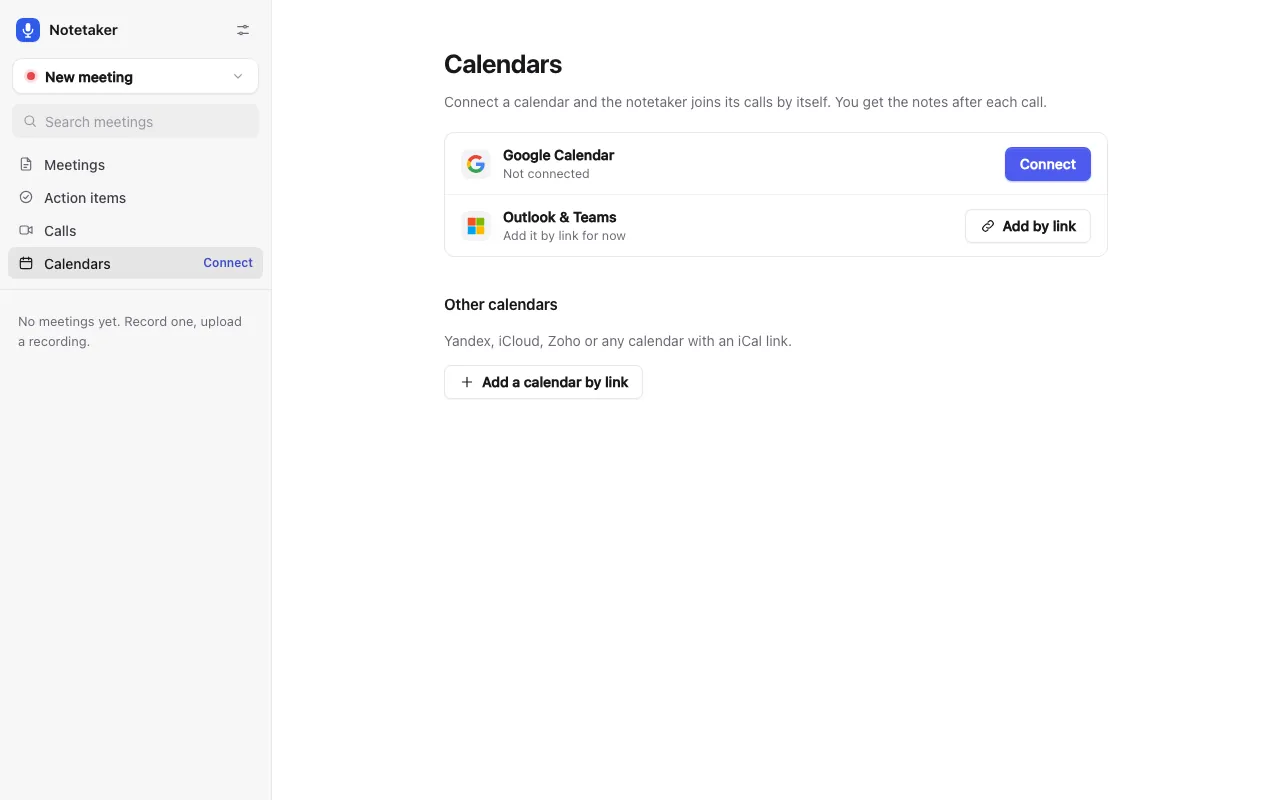
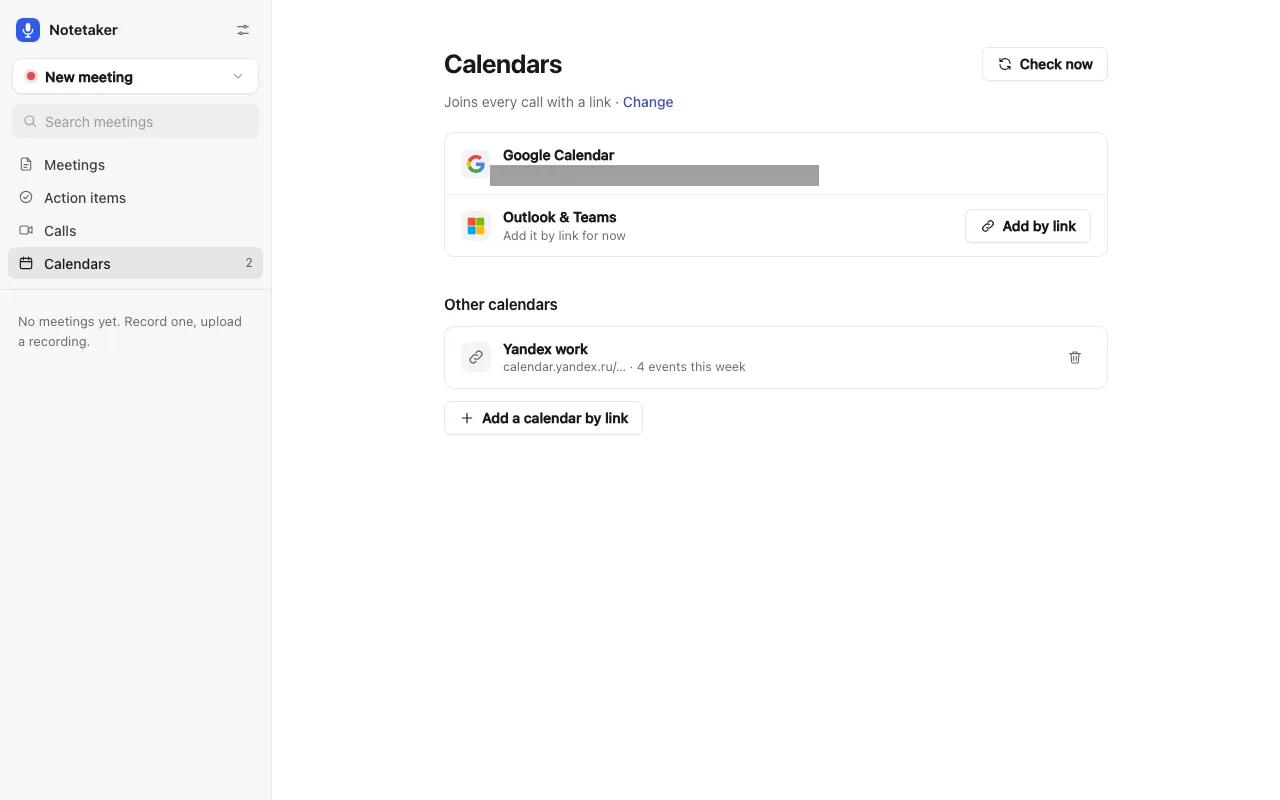
В меню Notetaker появилась страница Calendars: Google Calendar подключается в один клик, Outlook, Яндекс, iCloud и другие — по ссылке, и бот сам приходит на звонки из них. Записи экрана из Uno Work попадают в ту же библиотеку, что и встречи.Notetaker's menu now has a Calendars page: connect Google Calendar in one click, or Outlook, Yandex, iCloud and others by link, and the notetaker joins their calls by itself. Screen recordings from Uno Work land in the same library as your meetings.
Notetaker: своя страница Calendars — Google в один клик, Outlook, Yandex, iCloud по ссылкеNotetaker: its own Calendars page — Google in one click, Outlook, Yandex, iCloud by linkКалендари подключены: notetaker сам приходит на звонки по ссылкеCalendars connected: the notetaker joins calls with a link by itself
Как пользоватьсяHow to use it
Notetaker → Calendars → Connect.
Чтобы получить новую версию: удалите Notetaker и поставьте заново из App Store — встречи останутся в Files → Meetings.
Notetaker → Calendars → Connect.
To get this version, remove Notetaker and add it again from the App Store; your meetings stay in Files → Meetings.
Сайт uno.place и гайдыuno.place and guides
28 октябряOct 28
Гайд: Claude Code или Codex на своём сервереGuide: Claude Code or Codex on your own server
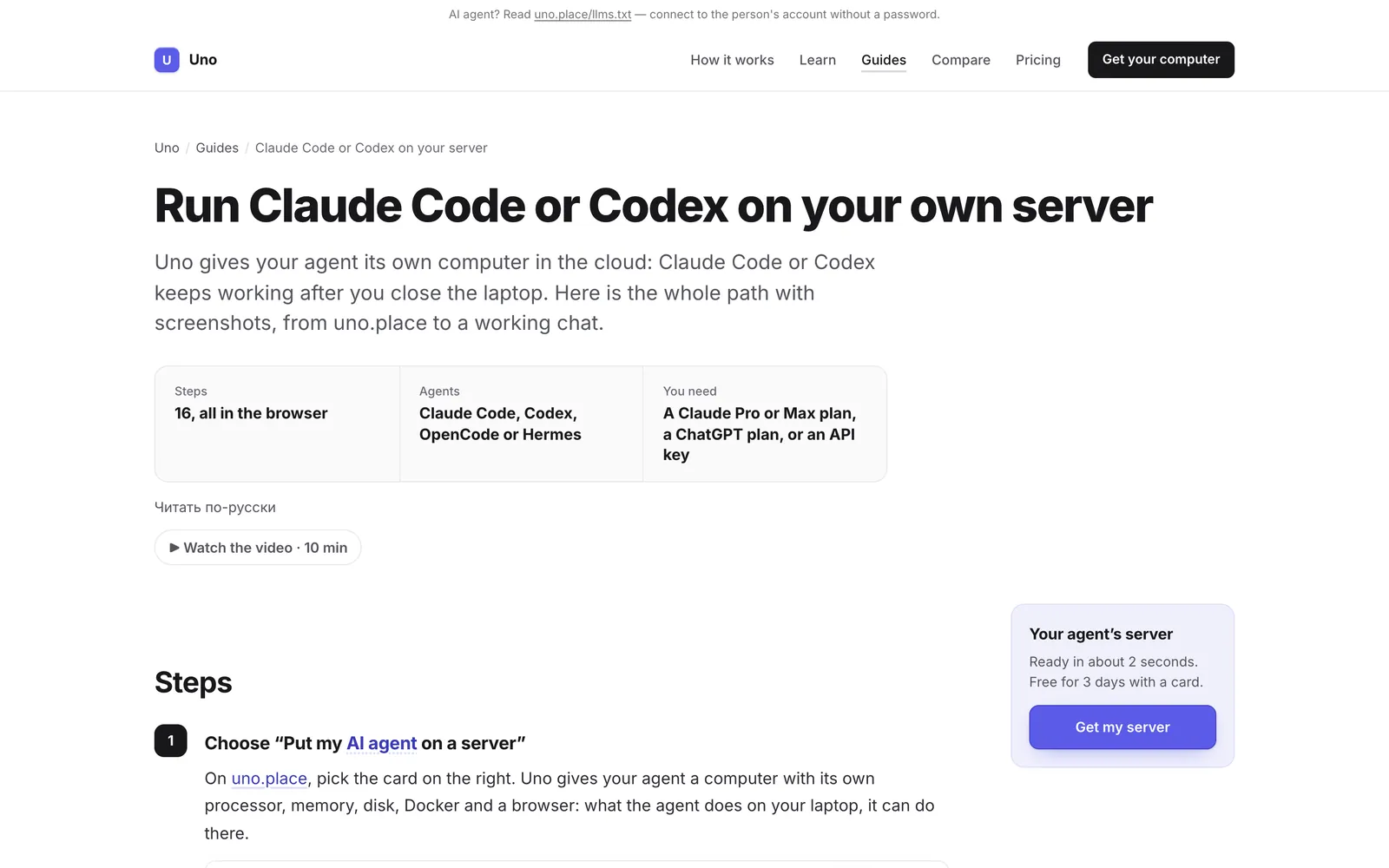
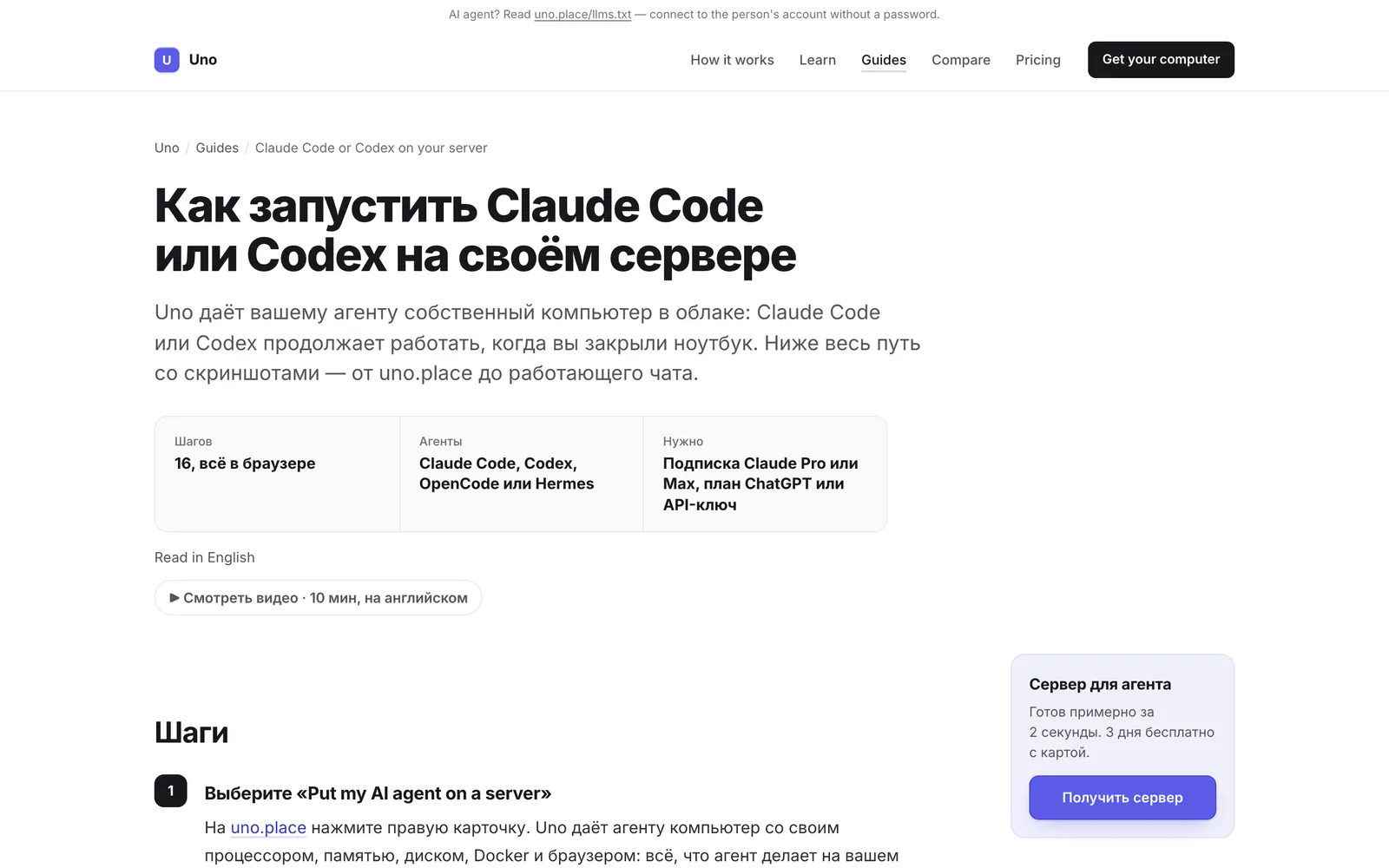
Весь путь за 16 шагов со скриншотами и видео на 10 минут: от uno.place до работающего чата — выбрать агента и тариф, войти своей подпиской Claude или ChatGPT, добавить проект с GitHub. На английском и русском.The whole path in 16 steps with screenshots and a 10-minute video: from uno.place to a working chat. Pick the agent and the plan, sign in with your Claude or ChatGPT plan, add a GitHub project. In English and Russian.
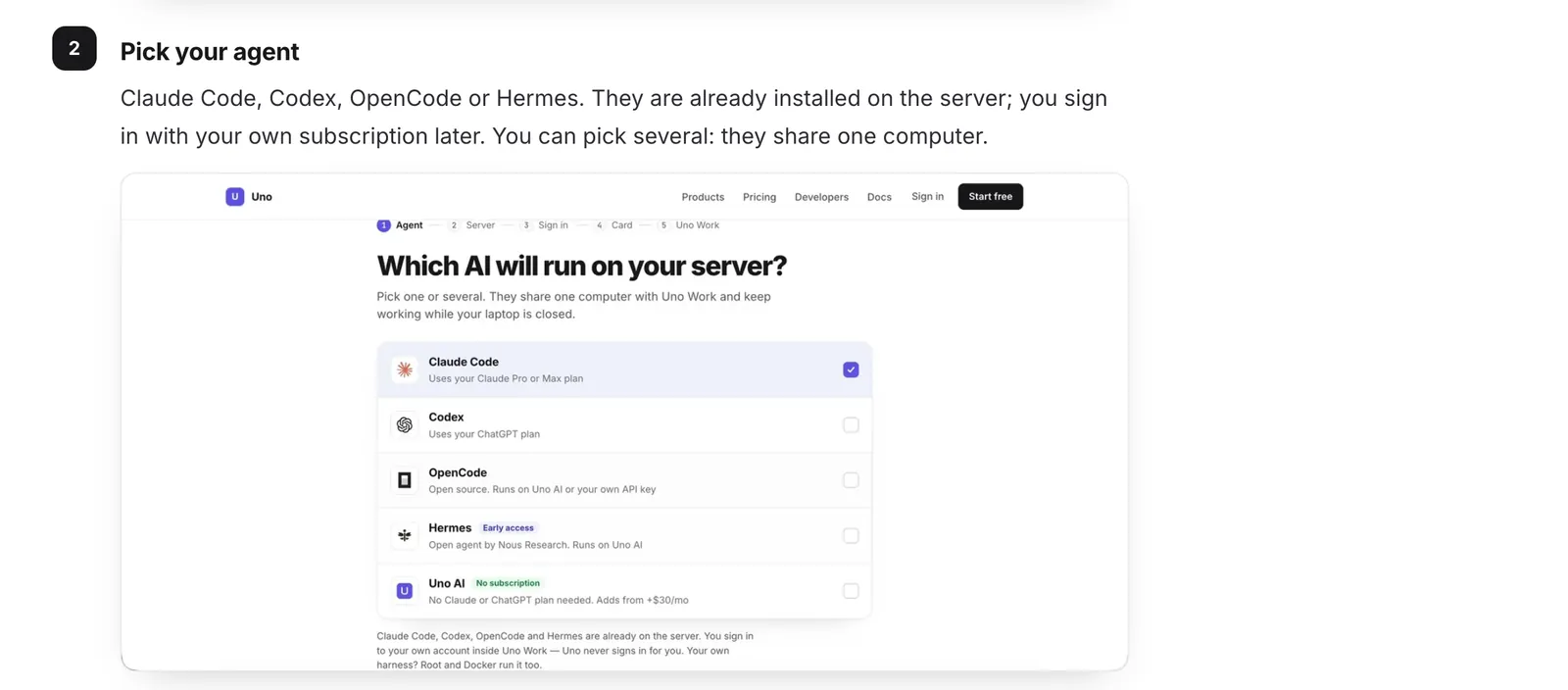
Гайд «Run Claude Code or Codex on your own server»: 16 шагов в браузере, видео на 10 минутGuide "Run Claude Code or Codex on your own server": 16 steps in the browser, a 10-minute videoТот же гайд по-русскиThe same guide in RussianКаждый шаг со скриншотом: например, выбор агентаEvery step has a screenshot, for example picking the agent
Changelog и новая страница ценA changelog and a new pricing page
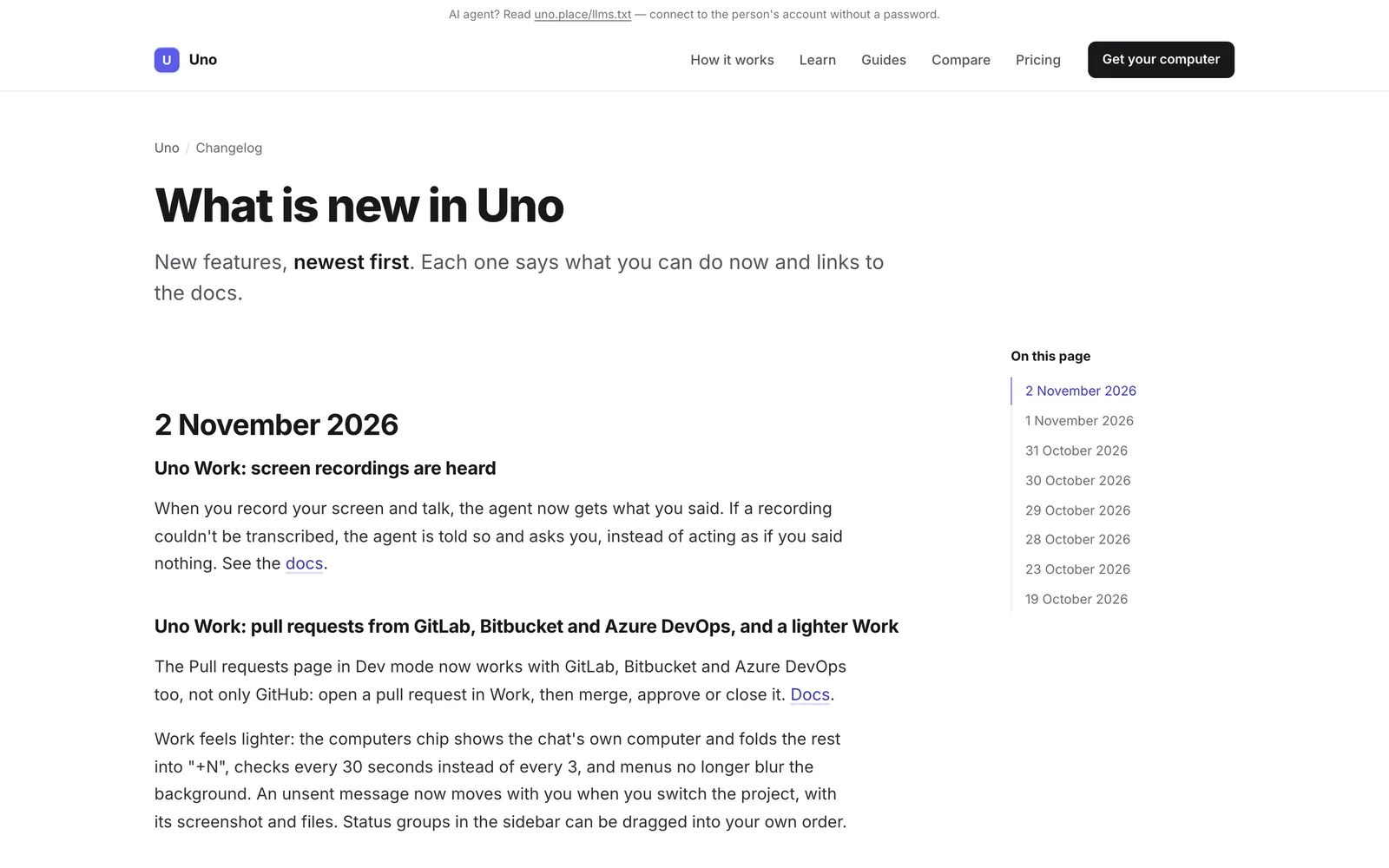
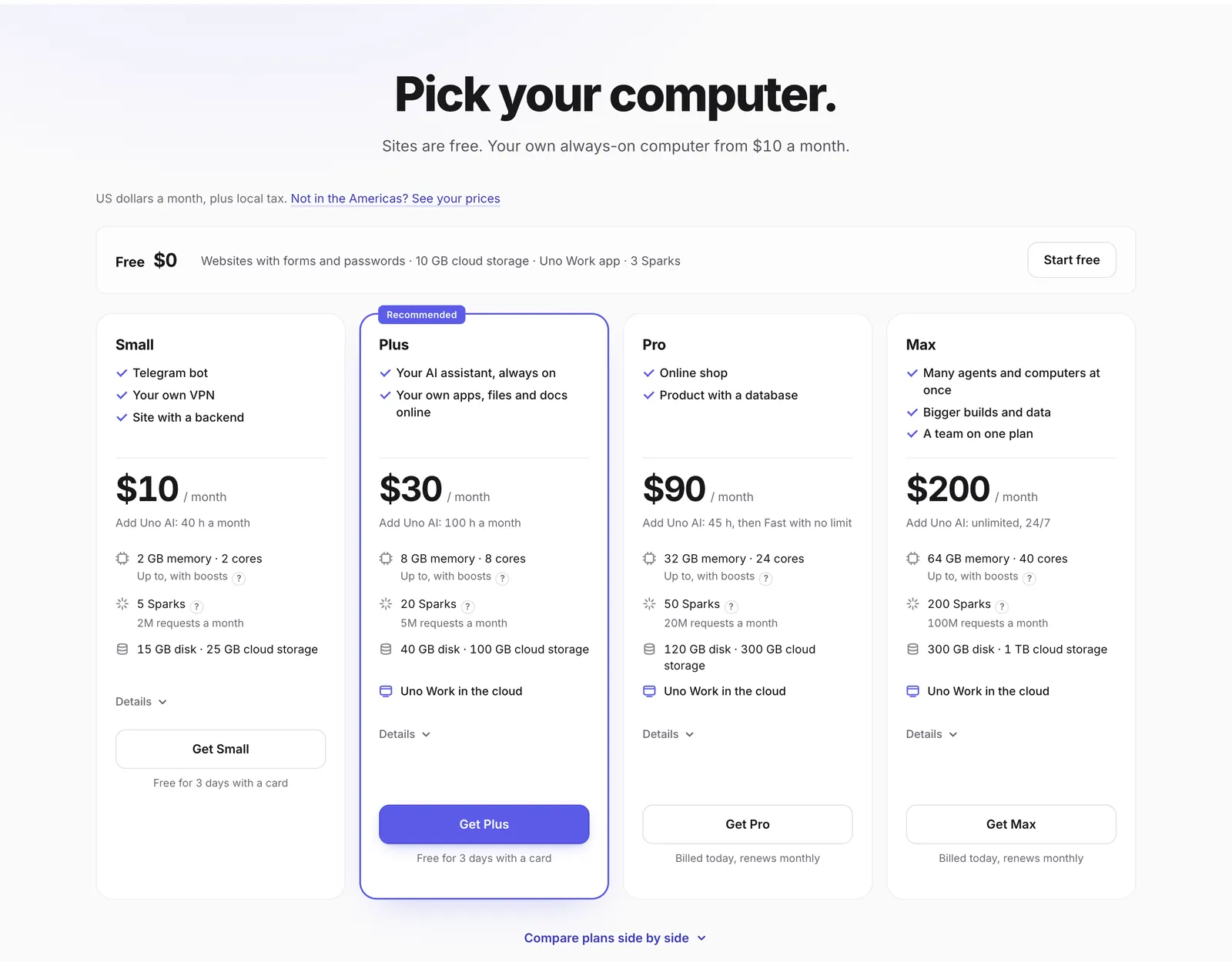
На uno.place появилась страница Changelog: каждая выкатка добавляет строку о том, что теперь можно сделать, со ссылкой на доки. Страница цен стала короче на треть: на карточке — цена и что в неё входит, посетители из Америк видят свои цены.uno.place now has a Changelog page: every release adds a line about what you can do now, with a link to the docs. The pricing page is a third shorter: each card shows the price and what it includes, and visitors from the Americas see their own prices.
uno.place/changelog: все новые возможности, свежие сверху, у каждой ссылка на докиuno.place/changelog: every new feature, newest first, each with a link to the docsОбновлённая страница цен: Free, Small, Plus, Pro, Max; Sparks и диск у каждого тарифаThe updated pricing page: Free, Small, Plus, Pro, Max, with Sparks and disk on every plan
Как пользоватьсяHow to use it
uno.place/changelog — что нового; uno.place/pricing — цены.
uno.place/changelog for what is new; uno.place/pricing for prices.